How DKIM works in Alva
Alva Digital Downloads sends transactional email through a dedicated email-delivery provider. Registering a custom domain produces two DNS records: a DKIM TXT record that lets receiving inboxes cryptographically verify the message, and a Return-Path CNAME record that handles bounces under your domain. Both must resolve before Alva switches the sender.
Set up your custom domain
1. Open Custom email domain settings
In the Alva admin, click Settings, then Custom email domain. If you see an upgrade prompt instead of the form, your shop is on the free plan.
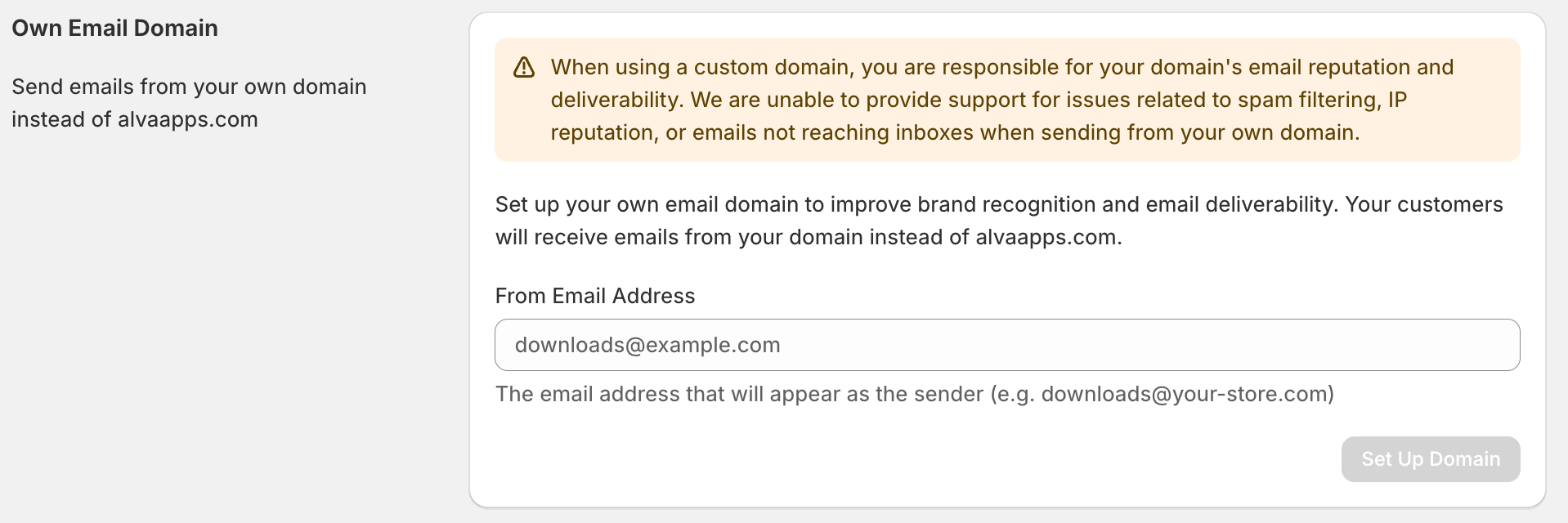
2. Enter the sender address you want
Enter the full sender address — for example downloads@yourstore.com — and click Set up domain. Alva extracts the domain (yourstore.com) and registers it with the email delivery provider.
3. Copy the DNS records Alva shows you
Once the domain is registered, the page lists two records: a DKIM TXT and a Return-Path CNAME. Keep this tab open — the host and value strings are copy-paste targets for the next two steps.
DNS records panel after the domain is created. Show two cards labelled DKIM (TXT) and Return-Path (CNAME), each with a Host field, a Value field, and a copy-to-clipboard icon. Status badge "Pending verification" visible.
4. Add the DKIM TXT record at your DNS provider
At your DNS provider (Cloudflare, GoDaddy, Route 53) add a new TXT record. Use the Host and Value shown under the DKIM record card in the Alva admin — copy them exactly. Do not use the "Verified" host/value fields shown after verification completes, as those will be empty until DNS resolves and will silently fail if copied.
A typical DNS provider's "Add record" dialog (Cloudflare style). Type dropdown set to TXT, Name field with the DKIM host, Content field with the long DKIM value, TTL Auto. Highlight the Type dropdown and the Name/Content fields with a red box.
5. Add the Return-Path CNAME record
Add a CNAME record at pm-bounces.<your-domain> (Alva pre-fills the exact host) pointing to pm.mtasv.net. This routes hard bounces back through your domain.
6. Wait for DNS to propagate
Propagation usually takes 5 to 30 minutes, but can stretch to 24 hours on slower providers or when the parent zone has a high TTL. There is no shortcut. Wait at least 30 minutes before the first verify attempt.
7. Click Verify in the Alva admin
Return to Settings → Custom email domain and click Verify. Alva checks that both DNS records have propagated and shows a green Verified status once they resolve. From this point on, every delivery email sends from your custom address.
The settings page in its verified state. Show both record cards collapsed with a green check icon and the badge "Verified". Sender preview line: "Sending from downloads@yourstore.com". Remove domain button visible but de-emphasised.
Once verified
Alva swaps the sender on the next outgoing message — no further action needed. The From name under Settings → Email still applies; only the address after the @ changes.
Troubleshooting
| Symptom | Likely cause | Fix |
|---|---|---|
| Verification keeps failing | DNS hasn't propagated, or the wrong DKIM host/value was used. | Wait 30 minutes and re-check. Confirm you used the Host and Value shown in the Alva admin's DKIM record card — not the "Verified" fields that are empty until DNS resolves. |
| "Domain already exists" error on Set up domain | The domain is already registered with our email provider under a different account. | Email digitaldownloads@alvaapps.com with the domain so Alva support can release the prior registration. |
| Status Verified but emails still come from Alva's default sender | The shop downgraded to free, or only DKIM verified and Return-Path is still pending. | Check the plan in Settings → Plan — the subscription check runs on every email sent. Confirm both record cards show Verified. |
Limitations
Custom email domain is a paid-plan feature. The plan check runs on every email sent, so a downgrade reverts the sender to digitaldownloads@alvaapps.com on the very next email — there is no grace period. One verified domain per shop.
Frequently asked questions
No. One verified custom domain per Shopify store. To switch domains, remove the existing one in Settings → Custom email domain, then register the new one.
Alva reverts to the default sender address (digitaldownloads@alvaapps.com) on the next email. The check is immediate. The DNS records stay in place — re-upgrading restores the custom sender without needing to re-verify.
No. Past emails stay in customer inboxes from the original sender. New orders, and any manual resends triggered after verification, send from the custom domain.
See also
Was this helpful?
Last updated 2026-05-06