Test order steps
1. Create a 100% off discount
In the Shopify admin, click Discounts → Create discount → Amount off products. Set the discount to 100% and limit it to the digital product.
Screenshot needed
Shopify Discounts page with a 100% off product discount being created. Highlight the percentage field and the "Specific products" selector.
2. Place the order on the storefront
Open the storefront in an incognito window. Add the digital product to cart, apply the discount code, and check out using your own email address.
3. Wait for the email
Within 30 seconds, the download email arrives in the inbox you used at checkout. The Alva dashboard also shows the order under recent activity.
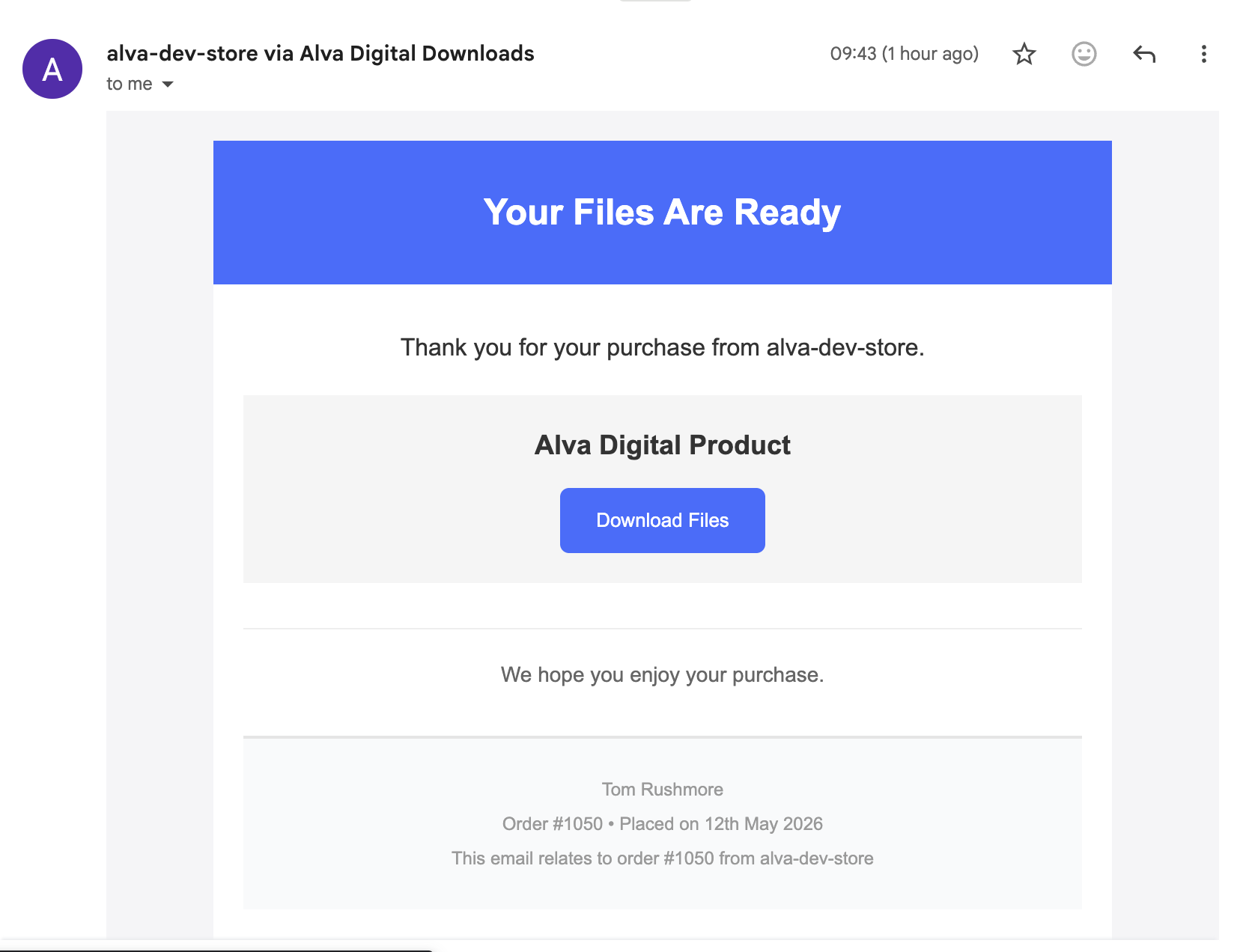
4. Click the download link
Click the link in the email. The file should download immediately. If nothing arrives, check spam first, then the Email Logs page in the Alva admin.
See also
Was this helpful?
Last updated 2026-05-05