Install steps
1. Open the App Store listing
Open apps.shopify.com/alva-digital-downloads in a browser tab where you are already signed in to the destination Shopify admin. If you manage multiple stores, click the store picker on the listing page first.
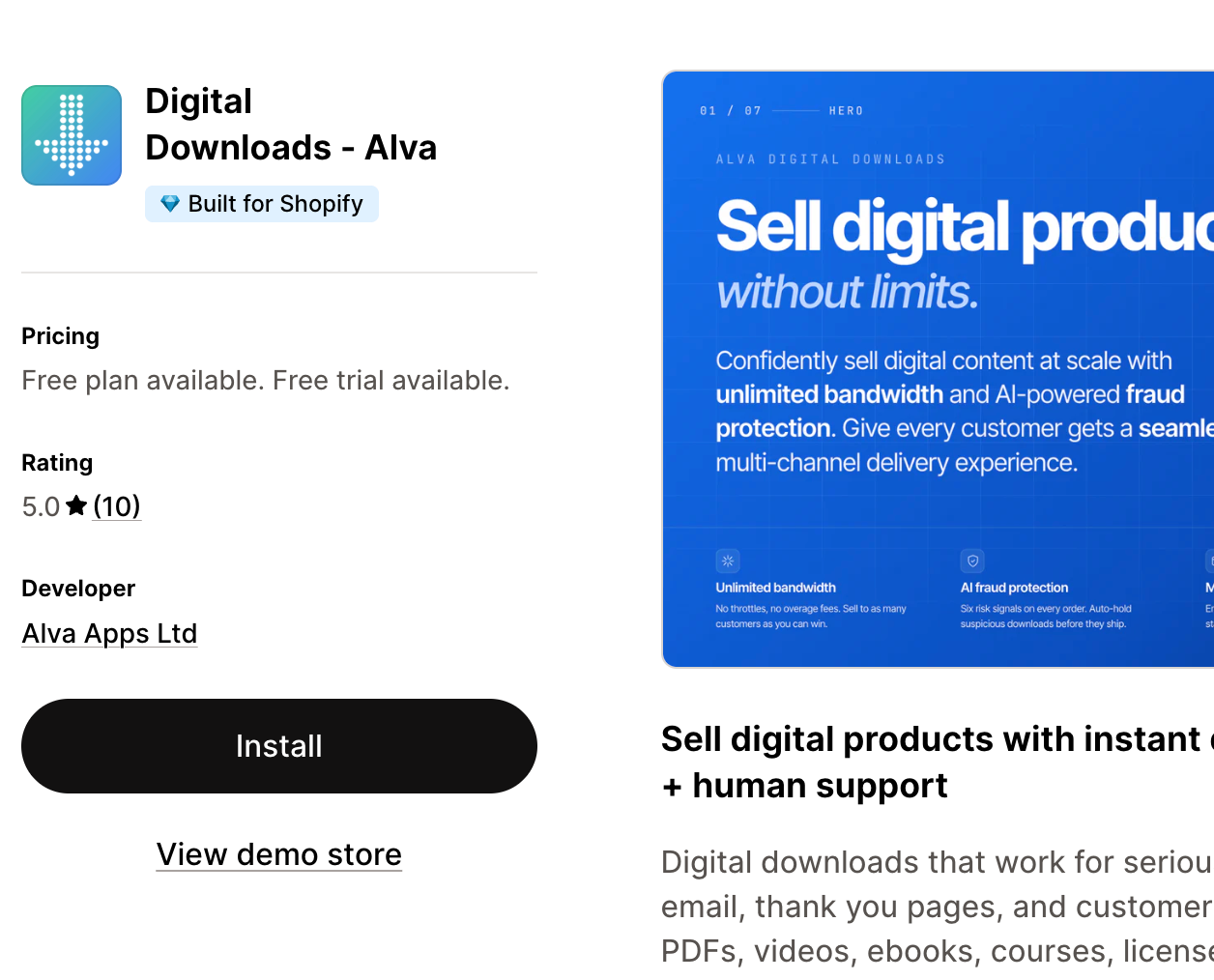
2. Click Install and approve permissions
Click Install. Shopify shows the permissions screen. Alva requests read and write access to products, orders, customers, and order fulfilments — the scopes needed to deliver files and run fraud checks. Click Install app to confirm.
3. Choose the Free plan
On the plan picker, choose the Free plan. You can upgrade later from the Billing page in the Alva admin. The 14-day trial on paid plans only starts the day a real (non-test) digital order is processed.
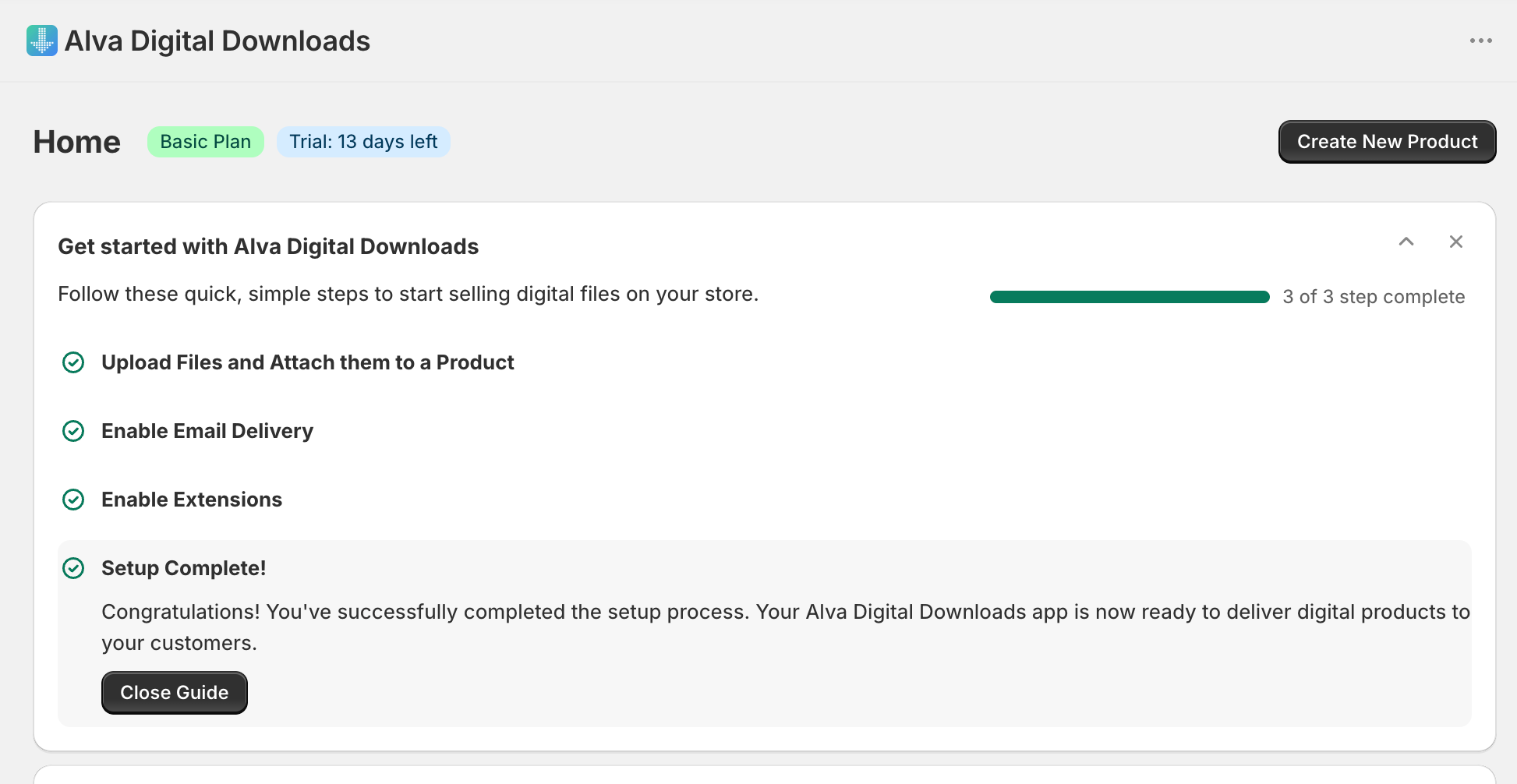
4. Land on the dashboard
Alva opens inside the Shopify admin and shows the first-run dashboard. The next three tasks — upload a file, attach it to a product, send a test order — are linked from the onboarding card.
See also
Was this helpful?
Last updated 2026-05-05