How it works
Alva keeps one global email template per shop, plus optional per-product overrides for SKUs that need different copy. Edit the global template first.
Customise steps
1. Open Email Settings
In the Alva admin, click Settings, then Email. The page shows the global template used for every product without an override.
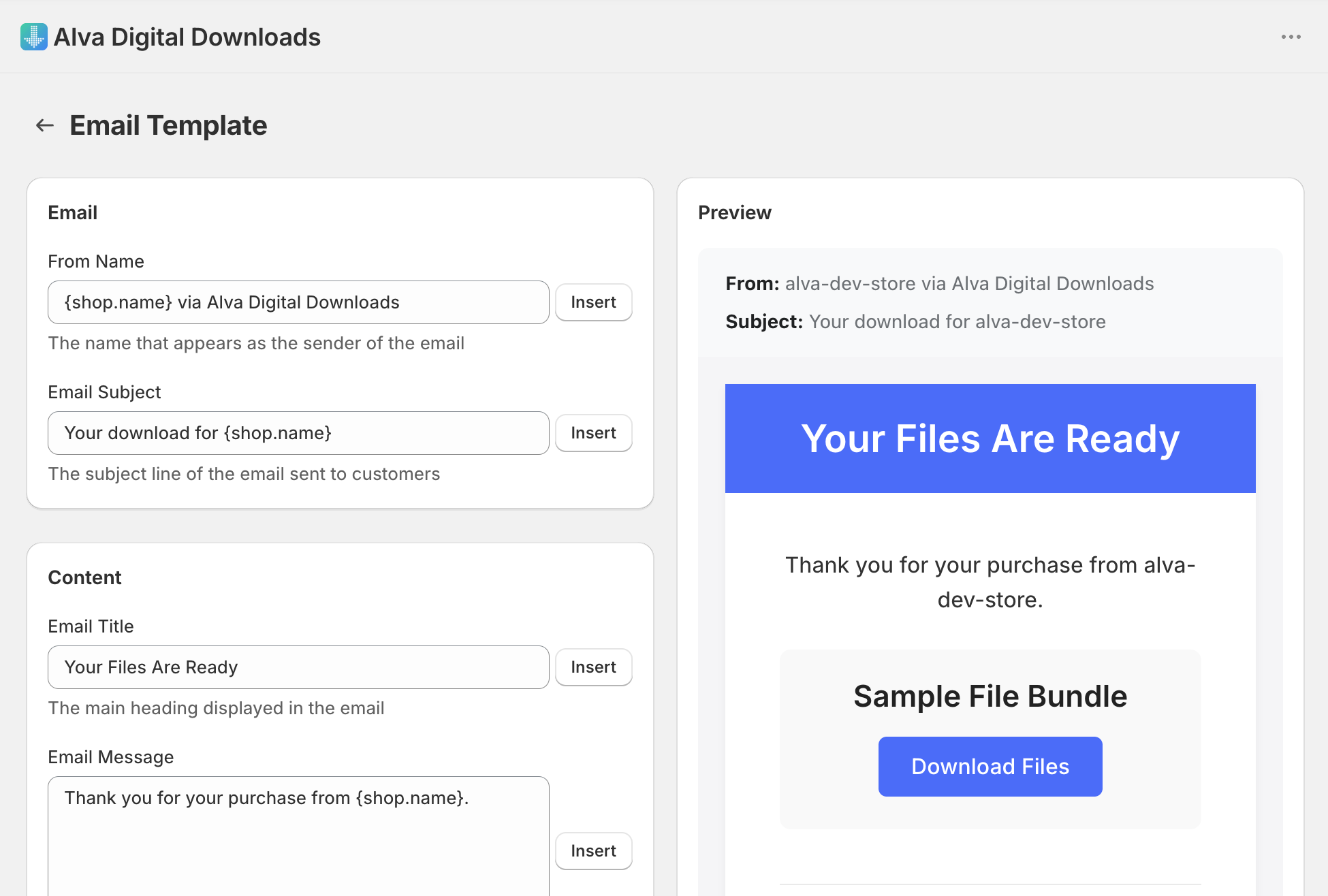
2. Edit the subject line and body
Edit the Subject line, From name, and body. Use placeholders like {{customer.first_name}}, {{order.name}}, and {{download.link}} — they expand at send time.
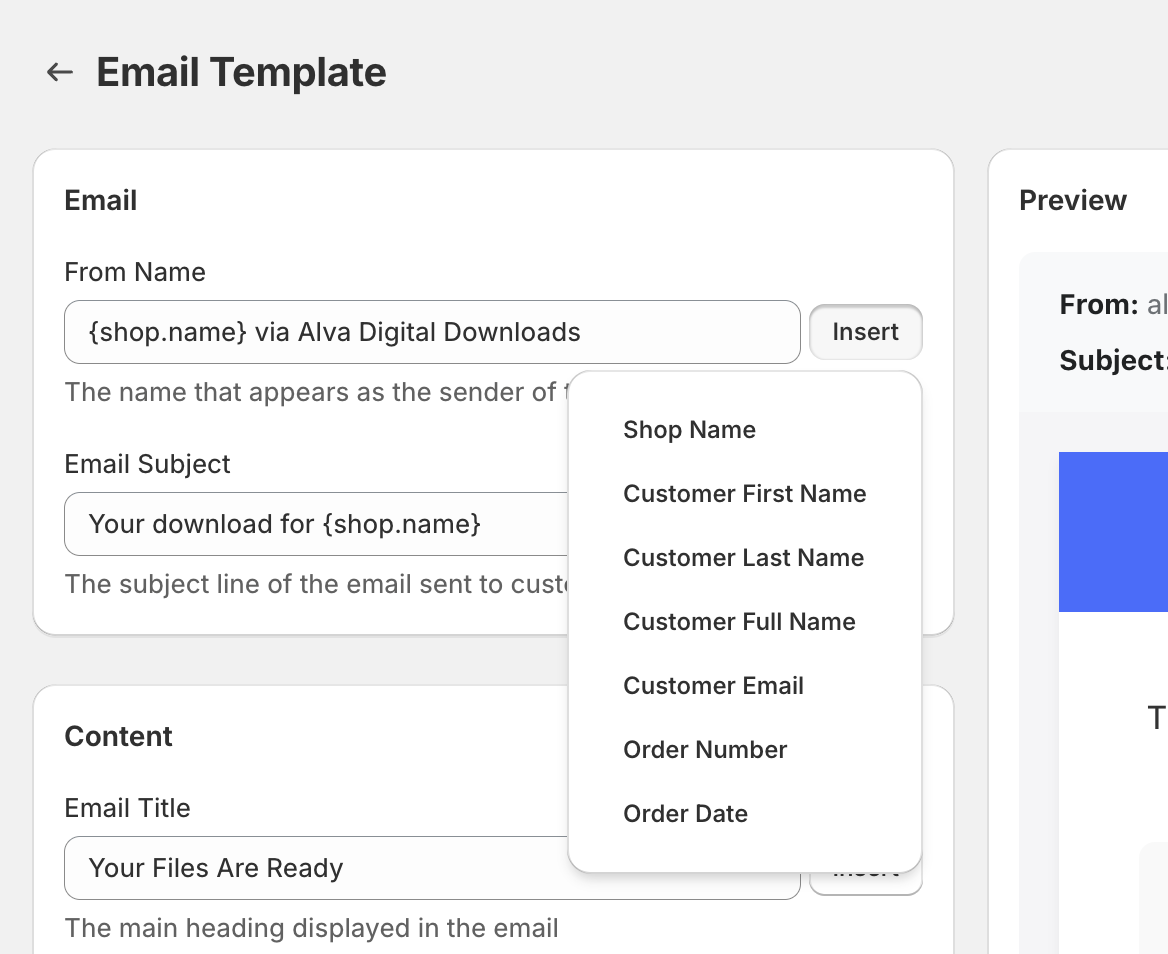
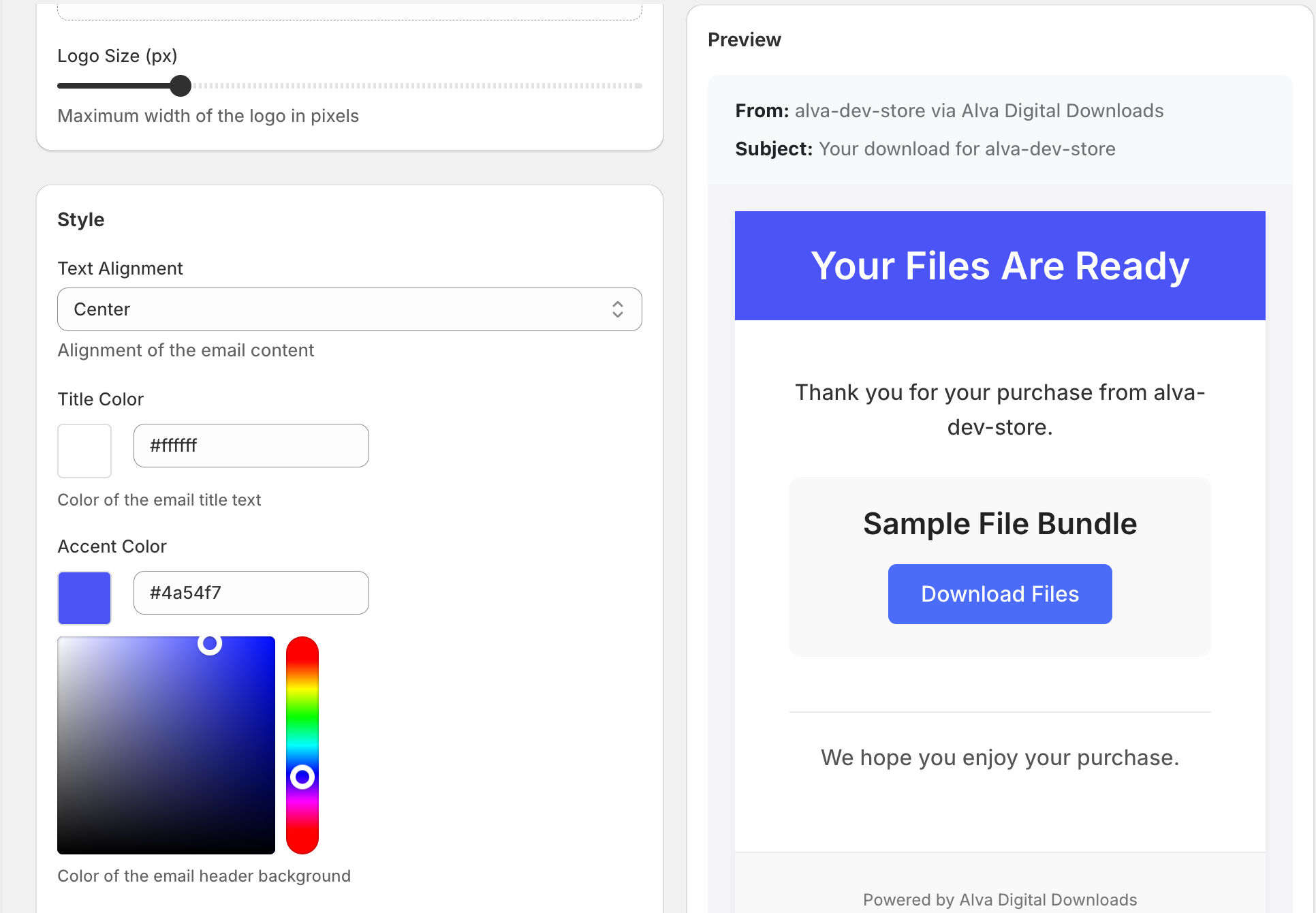
3. Add a logo and accent colour
Upload a square logo (256×256 PNG with transparent background recommended) and set an accent hex value. The preview pane updates live.
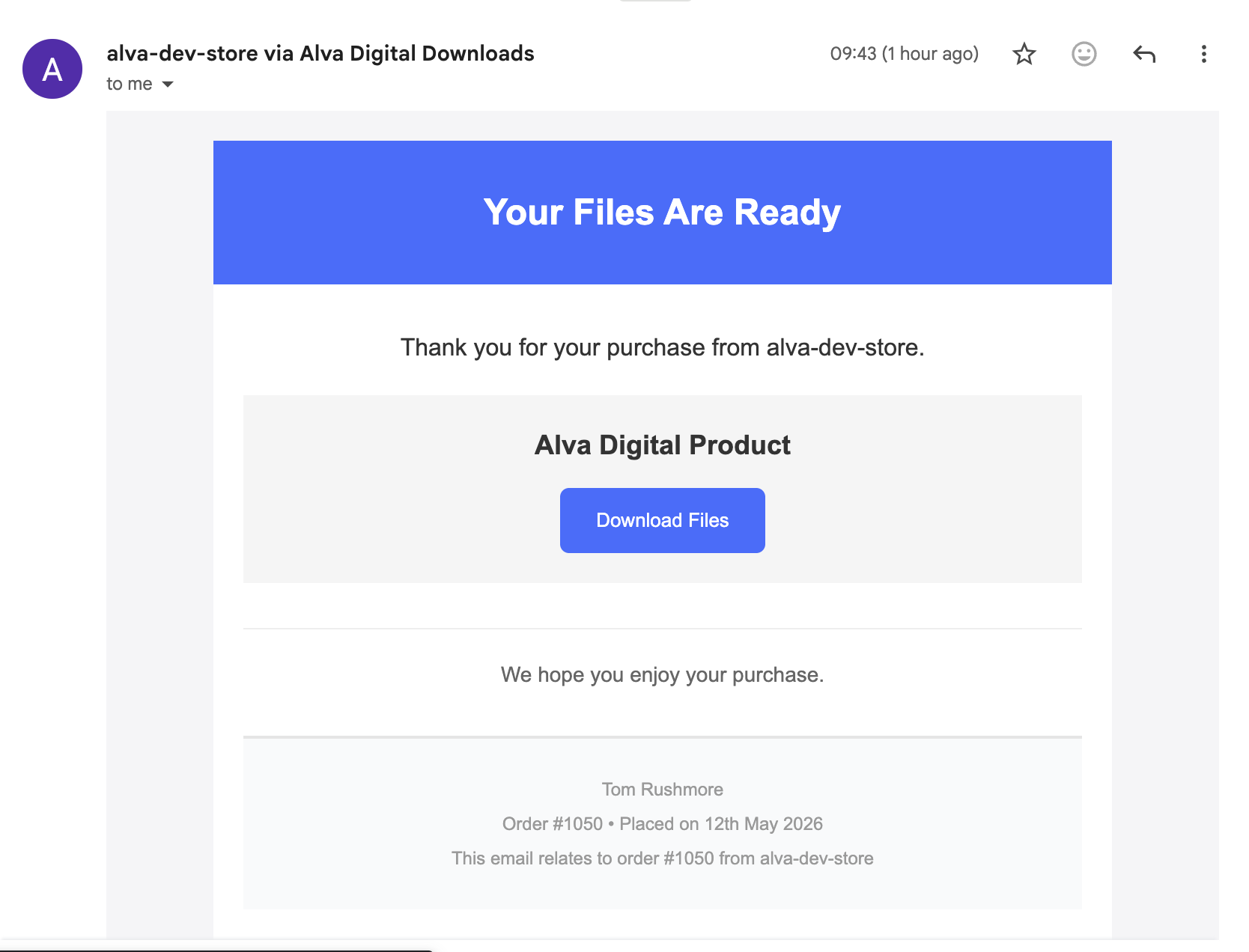
4. Send a preview to yourself
Click Send preview. Alva sends a fully rendered email to the merchant inbox so you can verify rendering in Gmail, Outlook, and Apple Mail.
5. Save
Click Save. The new template applies to every order placed afterwards. To re-send the new email to past customers, resend from the order detail page.
What customers see
Customers receive the email within seconds of paying (or fraud approval, when fraud checks are enabled). The download button generates a secure, time-limited link; clicking it again generates a fresh one automatically.
Limitations
Custom HTML is not supported — Alva uses a structured template to keep cross-client rendering reliable. To send from a custom domain (for example downloads@yourshop.com), upgrade to a paid plan and configure DKIM under Settings → Custom email domain.
See also
Was this helpful?
Last updated 2026-05-05