Steps to find a download link
1. Open the order
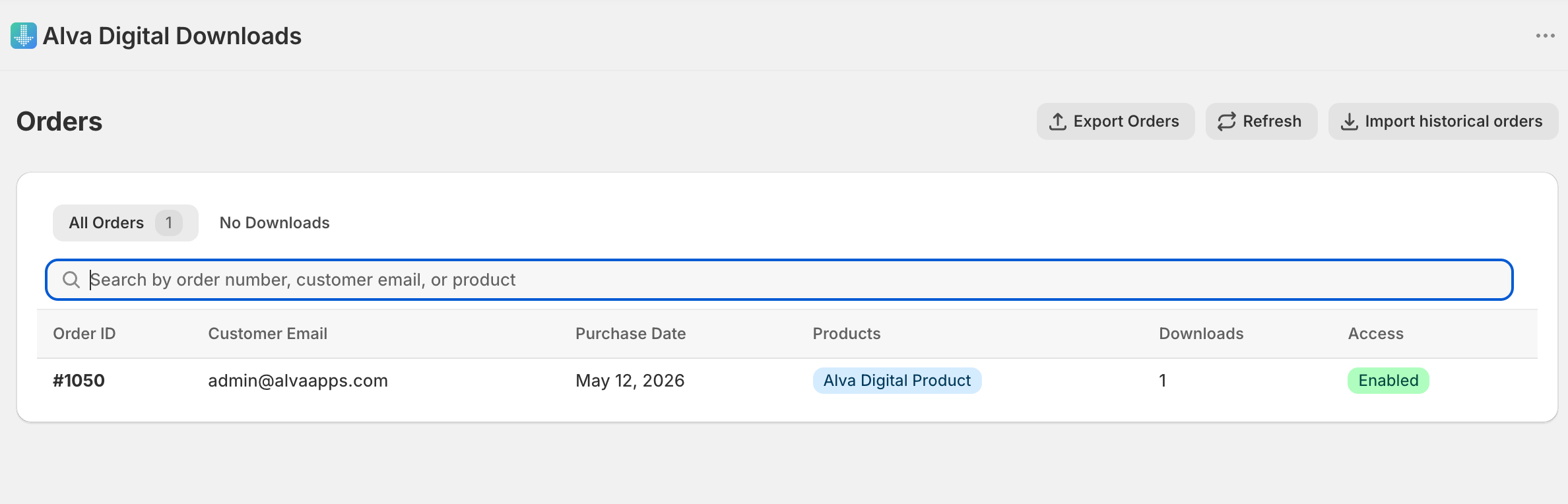
In the Alva Digital Downloads admin, click Orders. Search by Shopify order number or customer email, or click the order from the recent activity list on the dashboard.
2. Switch to the Downloads tab
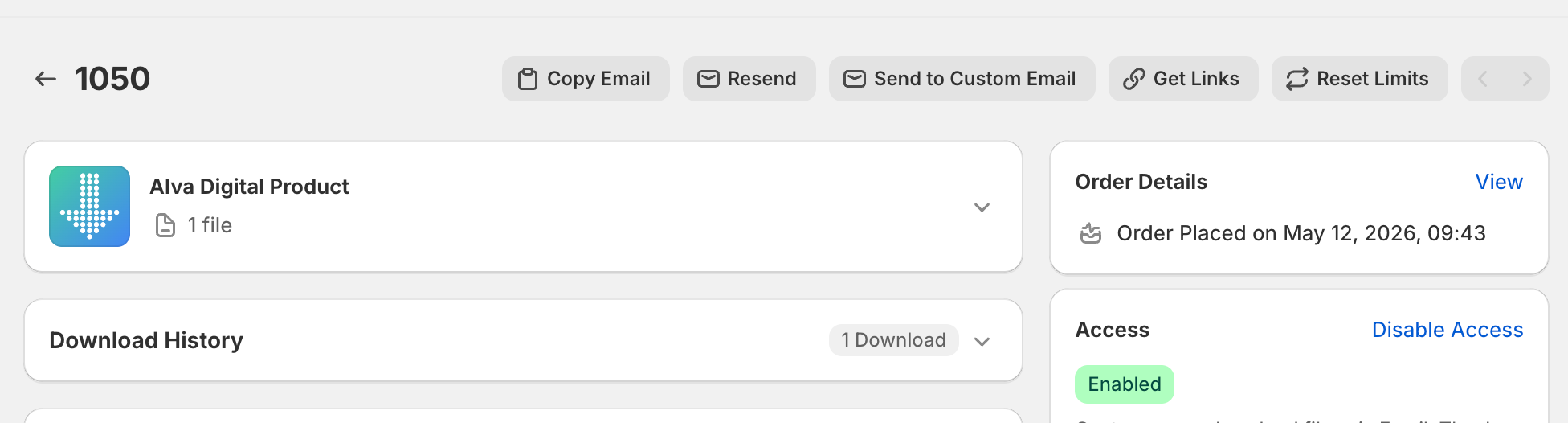
Each order page has a Downloads tab listing every file, pack, link, and license key attached to the order. Every row shows the filename and the current download count.
3. Copy the link or resend the email
Click Copy link to put the download URL on your clipboard, ready to paste into a chat reply. Click Resend email to send the original delivery email back to the customer's address on file.
See also
Was this helpful?
Last updated 2026-05-05