Steps to resend a download email
1. Open the order
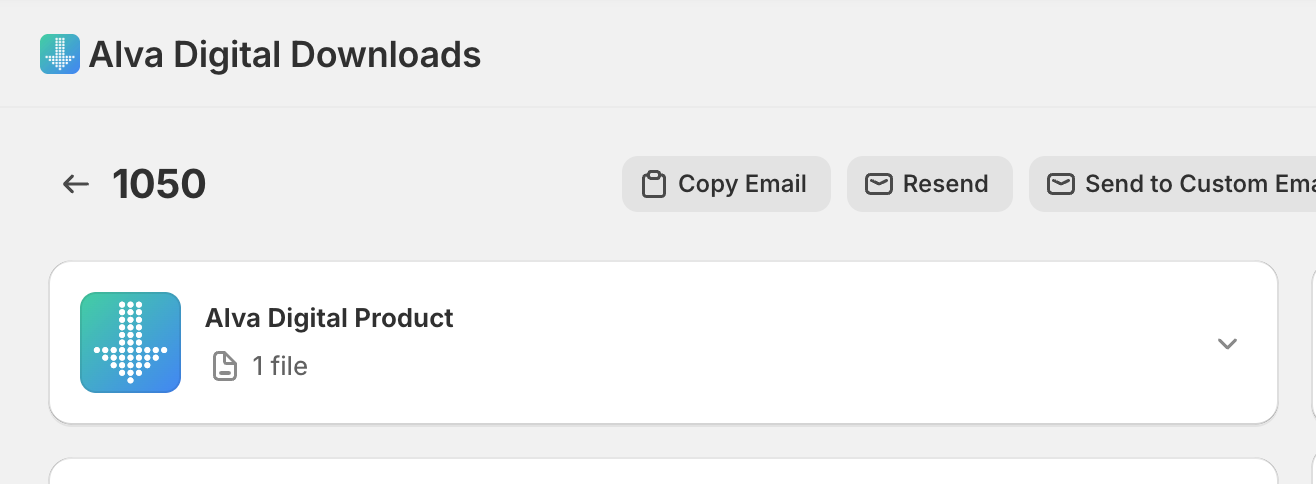
In the Alva Digital Downloads admin, click Orders. Search by Shopify order number or customer email, then click the order to open its detail page.
2. Click Resend
Open the actions menu on the order page and click Resend. Alva resends the original delivery email — same template, same files, same links — to the customer's address on file.
3. Confirm the toast
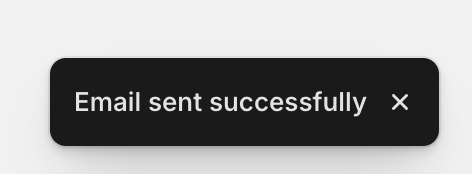
A confirmation toast appears once the email is queued. If the customer needs the email at a different address (typo on checkout, lost mailbox), click Send to Custom Email instead and enter the new address.
See also
Was this helpful?
Last updated 2026-05-06