Where the download page settings live
The download page is configured from a single settings template per shop. Alva caches these settings so the customer-facing page loads instantly. When you save, Alva refreshes its settings cache and the next render picks up the new values.
Setup steps
1. Open Download page settings
In the Alva admin, click Settings, then Download page. The form is on the left and a live preview is on the right, so every change shows immediately before you save.
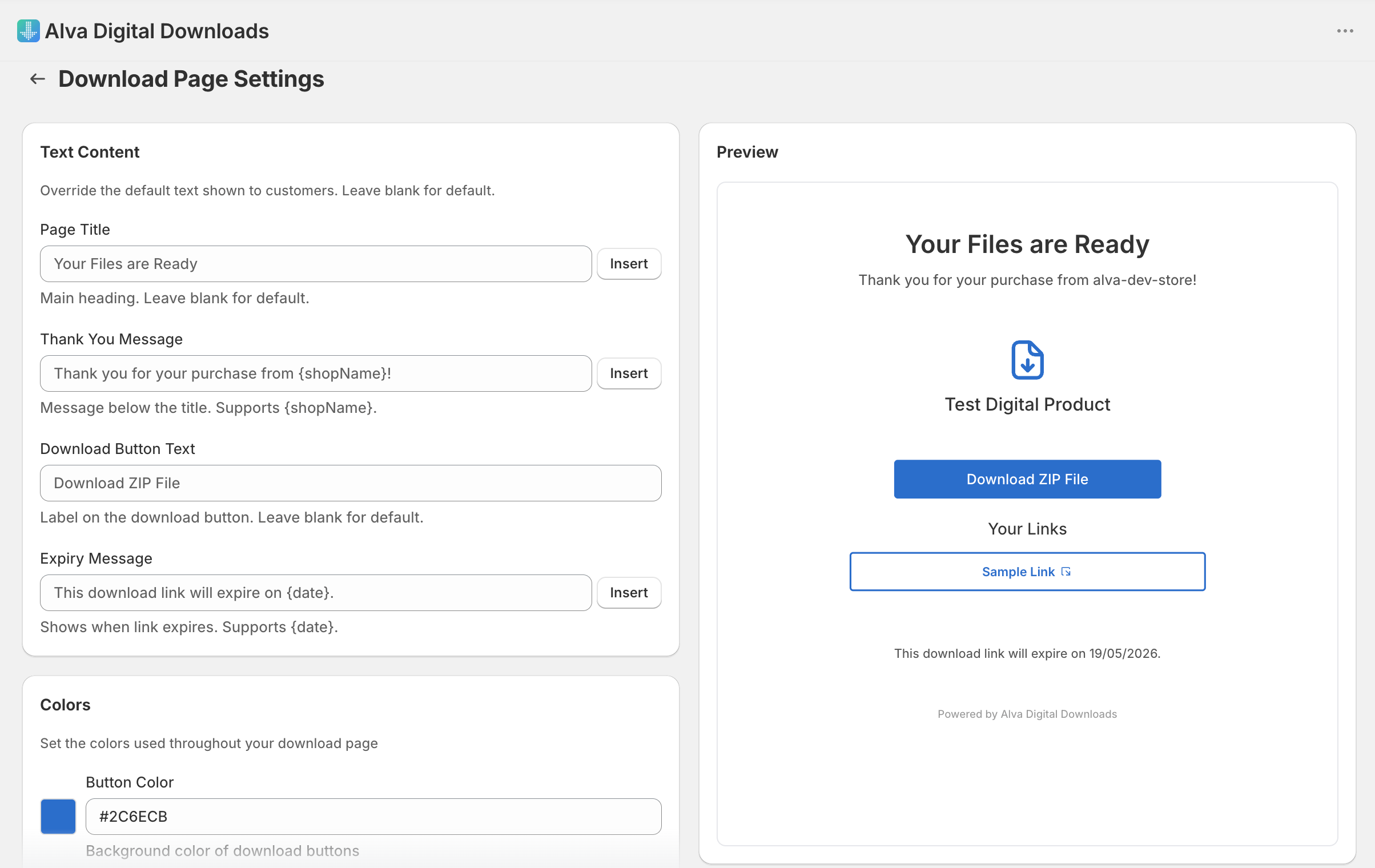
2. Edit the header and body copy
In the Text card, set the Page title, Thank-you message, Download button text, and Expiry message. Each field accepts plain text only — Alva strips any HTML on save to keep rendering predictable.
3. Upload your store logo
Open the Layout & logo card, drop a PNG or SVG into the upload zone, and use the Logo size slider to set a width between 50 and 300 pixels. A square 256×256 PNG with a transparent background renders cleanly at every size.
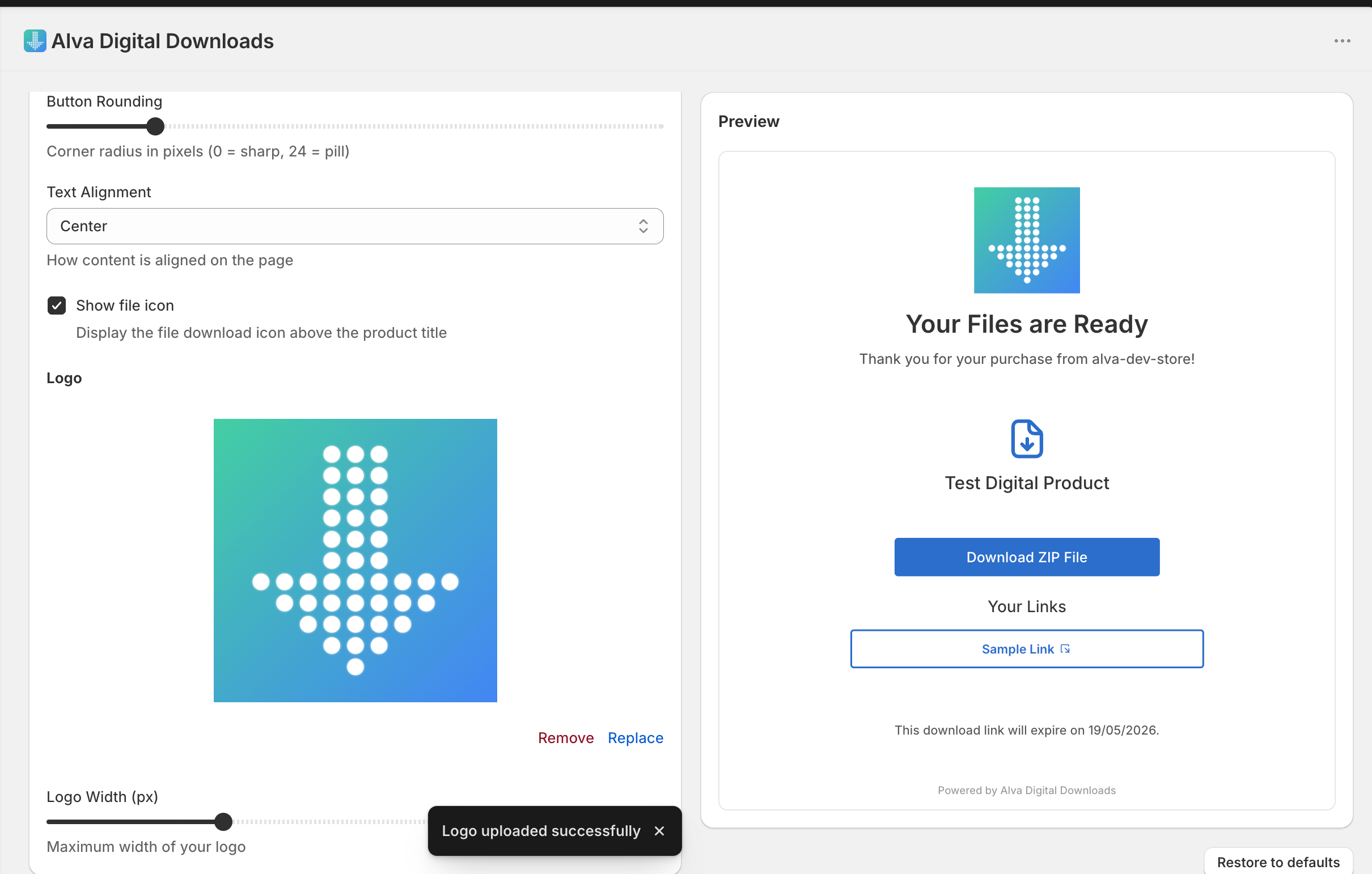
4. Set the button colour
In the Colors card, pick a hex value for the Button colour and Button text colour. The same card controls the icon, page background, title, body text, and footer text colours, plus a Button rounding slider for sharp or pill-shaped buttons.
5. Save
Click Save in the save bar. Alva refreshes its settings cache, so the new look applies on the next render — usually within a few seconds.
What customers see
The page opens with your logo at the top, then the page title, then a single file row (or one row per file in a pack) showing the filename, an icon, and a download button in your accent colour. The expiry message sits beneath the buttons and the footer message — a thank-you line in the footer text colour — closes the page.
Limitations
The same template renders for every product in your shop — there is no per-product download page. Alva Digital Downloads renders the page server-side (so AI crawlers and screen readers parse it directly) but does not accept arbitrary HTML, CSS, or scripts. Customisation is limited to the supported text, colour, logo, and alignment fields.
Frequently asked questions
No. Alva Digital Downloads renders one download page template per shop. All products and packs share the same header, logo, colours, and footer.
Download page customisation is a paid plan feature. Stores on the free plan see the default Alva-branded page until upgrading to Basic, Pro, or Enterprise.
No. Alva strips HTML from every text field on save to keep the page rendering reliable across browsers and AI crawlers. Style customisation is limited to the supported colour, logo, alignment, and copy fields.
See also
Was this helpful?
Last updated 2026-05-06