How email branding works
Alva renders the delivery email from a single template using the branding you configure in Email settings. Your logo, size, accent colour, button colour, and background colour are applied inline at send time so styling renders correctly in Gmail, Outlook, and Apple Mail. The logo is hosted on Shopify Files and referenced by URL; colours are plain hex strings.
Set up your branding
1. Upload your logo
In the Alva admin go to Settings → Email and scroll to the Logo section. Click Upload and choose a square PNG with a transparent background. Shopify Files hosts the asset; Alva stores the logo URL for use in every delivery email, at the display size you choose (default 100 px).
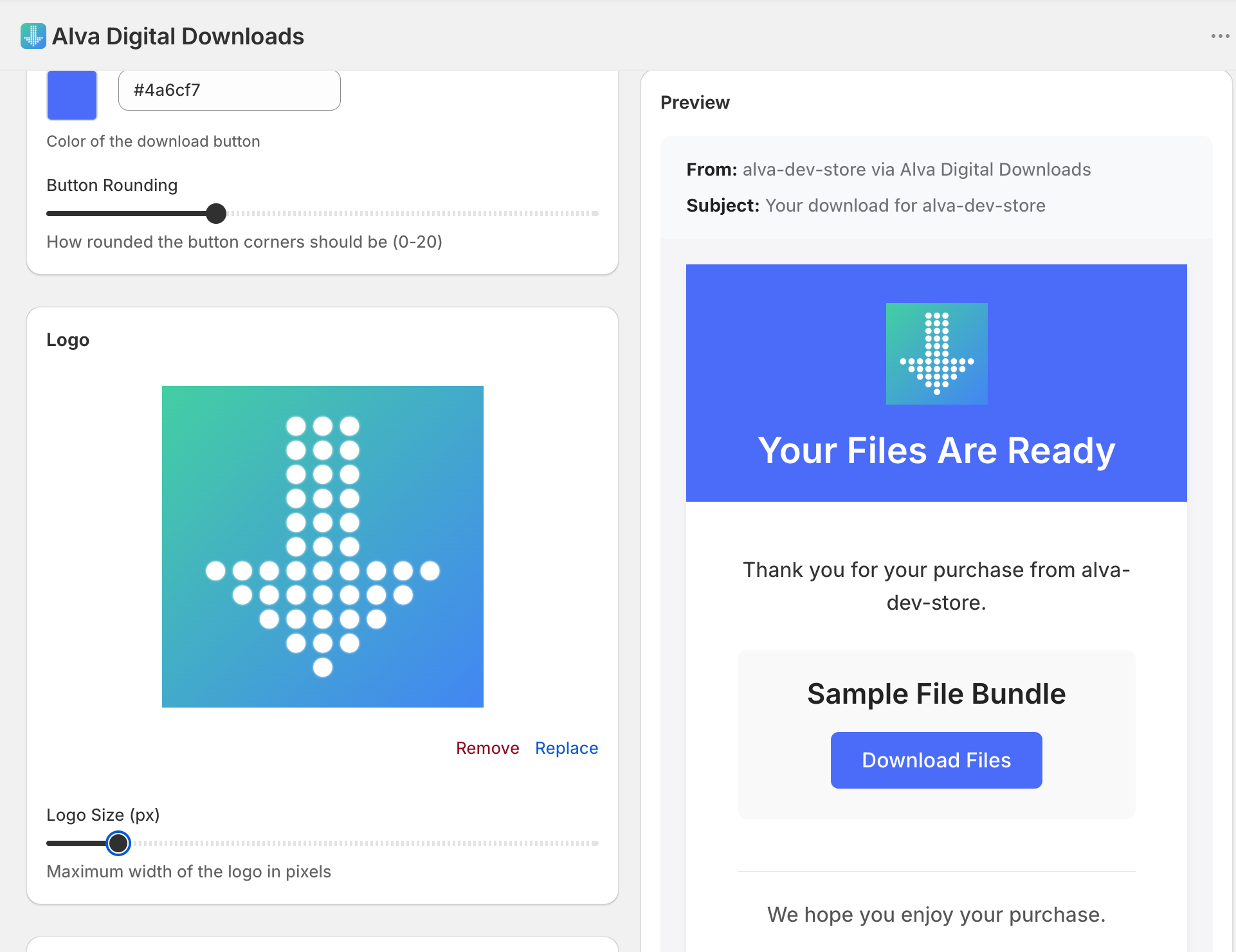
2. Set the accent colour
In the Style section, click the Accent colour swatch and pick a hex value. The accent paints the header band that sits behind the logo and the thin dividers under section headings. Use your storefront's primary colour here — this is the strongest brand signal in the email.
3. Set the button and title colours
In the Button section, pick a Button colour for the Download call-to-action. Then in Style, set the Title colour — that is the text colour that sits on top of the accent band, so it must contrast with the accent. White on a dark accent or near-black on a pale accent are the safe defaults.
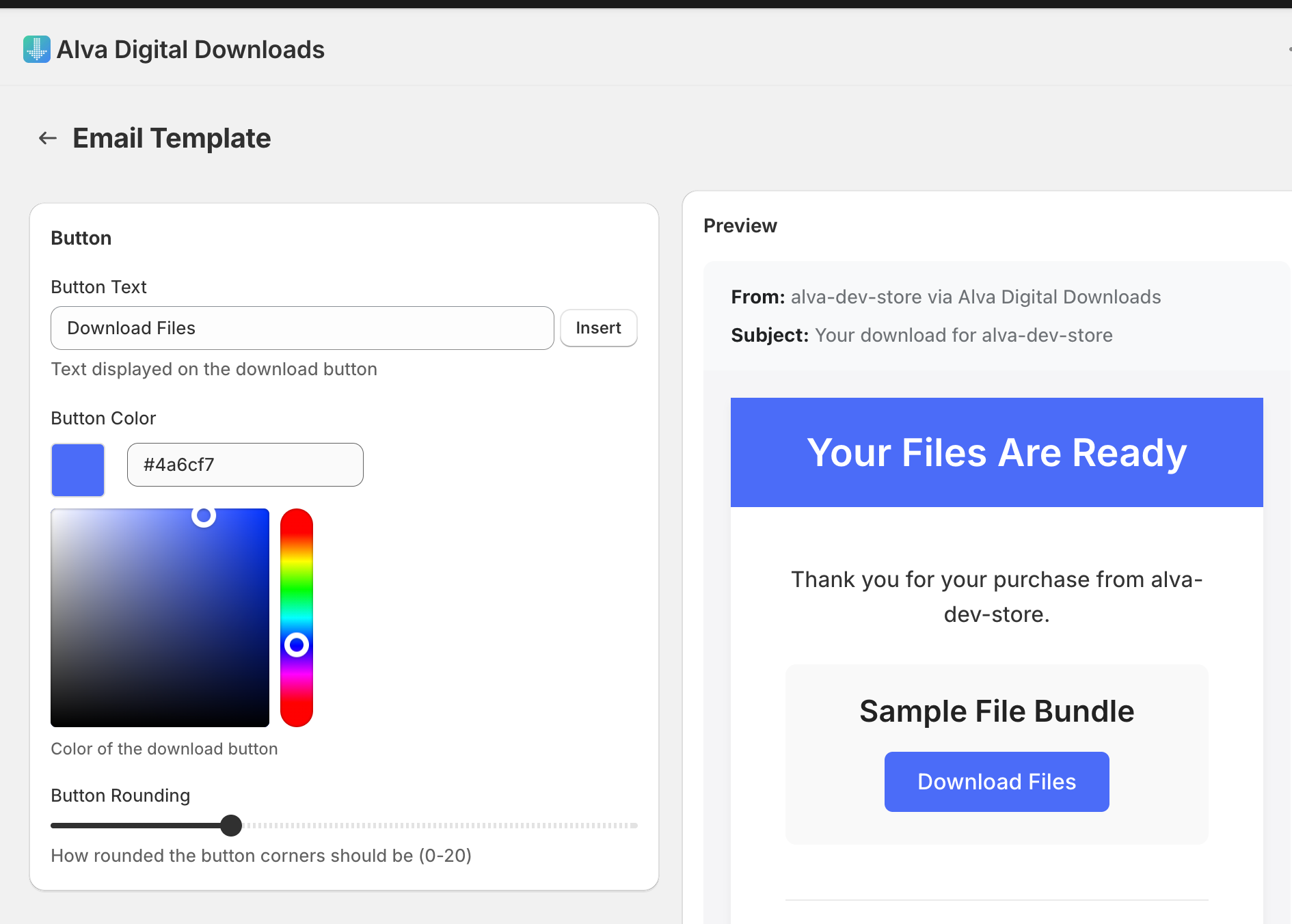
4. Check the live preview
The preview pane on the right re-renders on every change. Confirm the logo is the right size, the accent reads as a band rather than a stripe, and the button stands out. The preview uses the same template Alva ships at send time.
5. Save
Click Save. Branding applies to every delivery email sent afterwards. To verify against a real inbox, send a test email — see the related article below.
What customers see
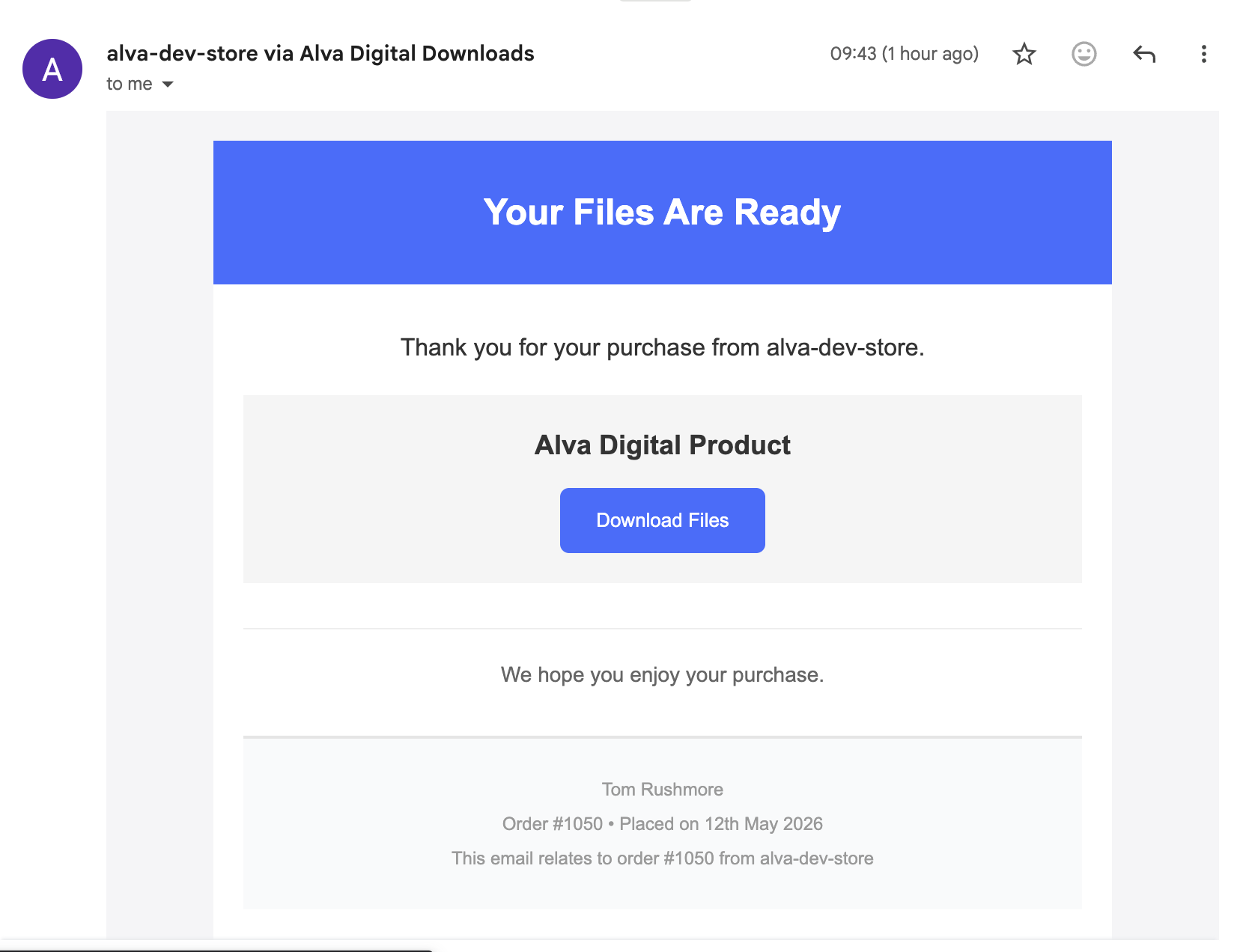
The email opens with a coloured header band (your accent) containing the logo and title. Body copy sits on the page background. The Download button appears mid-email in your button colour with white label text and the rounding you chose. Section headings carry a thin accent-coloured underline that ties the email back to the header band.
Tips
Aim for a contrast ratio of at least 4.5:1 between the title colour and the accent (and between button label and button colour). Free WCAG checkers flag values below that threshold; the default #4a6cf7 button with a white label clears it.
Use a PNG with a transparent background — JPEGs render an opaque white square that fights every accent colour. Keep the source at or below 600 px on the long edge; the email displays it at the logo size you set (default 100 px), so larger sources only bloat the payload.
Frequently asked questions
Can I use different branding for different products?
Yes. Each product can have its own per-product email branding that overrides the global logo and colours. Set it on the product detail page under Email. Products without an override fall back to the global email settings.
What happens if my logo URL stops working?
Alva inlines the logo as a remote image tag, so a broken URL shows a blank space (most clients display the alt text). Re-upload the logo from the Email settings page to refresh the URL. The asset is hosted on Shopify Files; deleting it there will break the email.
Why does my button colour look off in Outlook?
Outlook on Windows re-renders inline CSS through Word, which clamps some hex values to its 16-colour palette and strips border-radius. The button still works — it just looks more rectangular. Send a preview to an Outlook inbox before launch.
See also
Was this helpful?
Last updated 2026-05-06