Why install this extension
The single most common support ticket in digital downloads is "I lost the email — can you resend my files?" Customers archive the delivery email, switch devices, or simply cannot find it months later. Pointing them to their Shopify customer account page resolves the request without merchant action: the Downloads section is there whenever they log in, regardless of email state.
Install the extension
1. Confirm the extension is installed
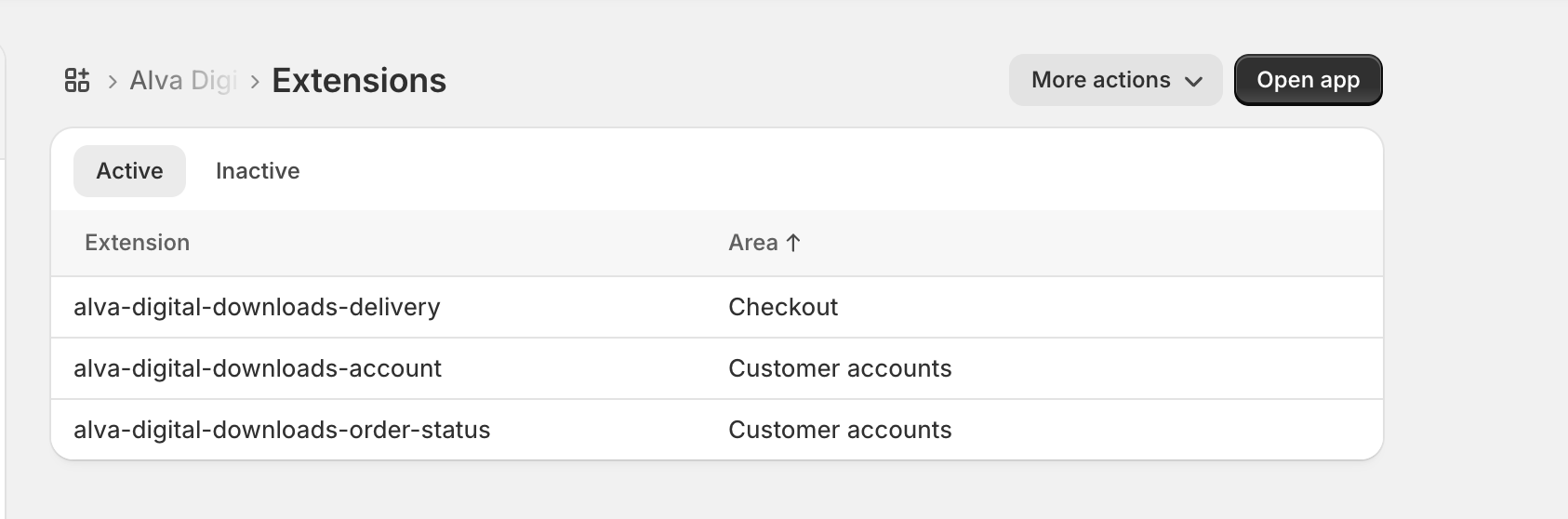
The customer-account extension ships as part of the Alva app and is registered automatically when merchants install Alva Digital Downloads from the Shopify App Store — there is no separate enable toggle. To confirm, open Settings → Apps and sales channels → Alva Digital Downloads, and check the extension list — alva-digital-downloads-account appears there.
2. Open the new customer account page
Place a test order against a digital product (a $0 draft order works), sign into the customer account email, and open the order confirmation. Click View order — Shopify routes you to the new customer account UI at customer-accounts.shopify.com or your shop's account subdomain.
3. Verify the Downloads section renders
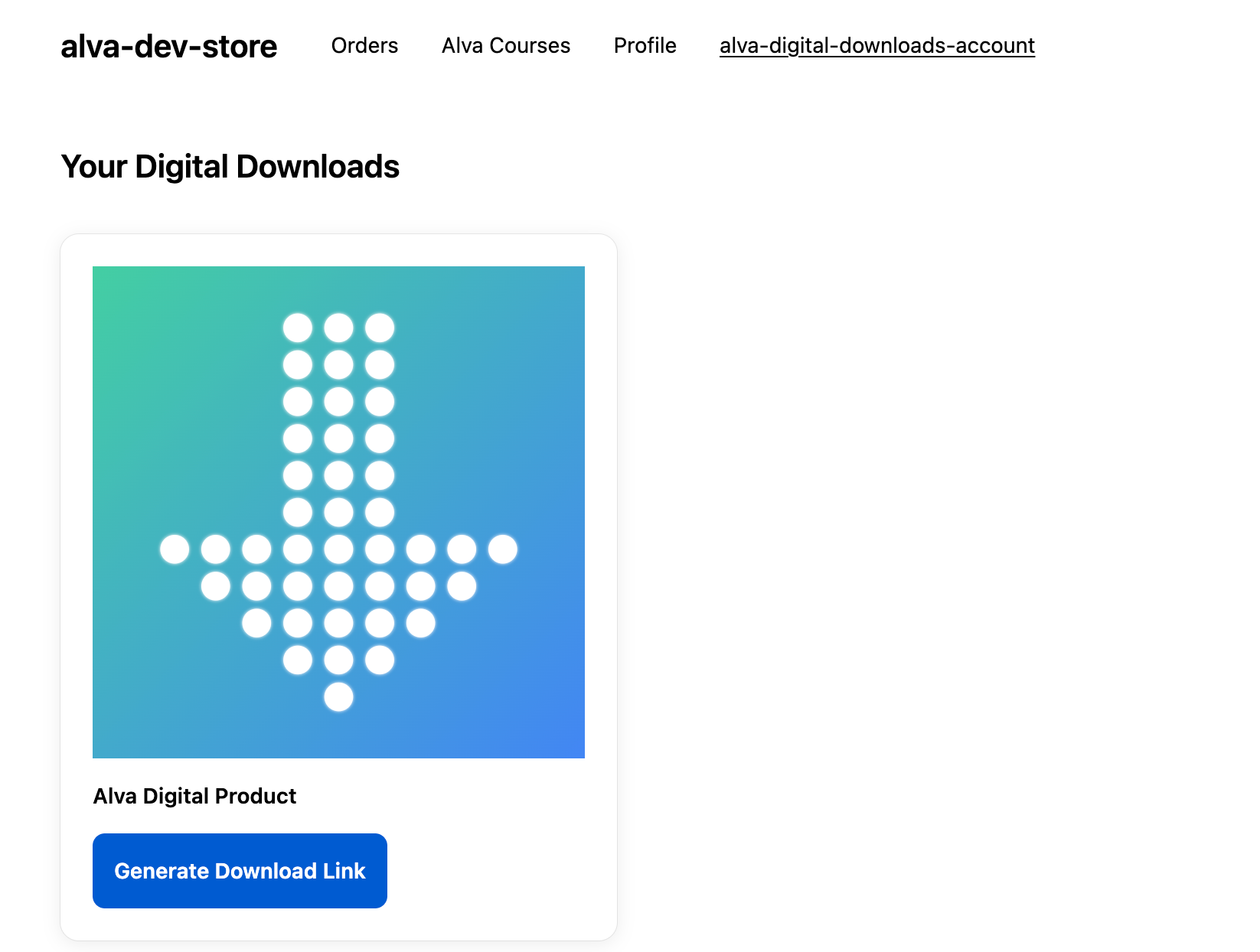
On the account home view, confirm that a Downloads section appears beneath the order list. Each row shows the product title, a thumbnail, and a Download button. Click one — the file streams securely from Alva's file storage, the same path the email links use.
4. Brief your support team
Add a one-line saved reply: "Sign into your account at your-shop.com/account and open the Downloads section to grab your files again." This deflects the "lost email" ticket without manual resending and keeps your fraud, expiry, and download-cap rules intact.
What customers see
The Downloads section lists every file, bundle, and link the signed-in customer has access to across every order, most recent first. Each Download button routes through the same access-checking logic as the email links — so per-customer download caps, IP-based rules, and expiry windows still apply. Pending personalized files show a "We are preparing your file" notice until the merchant uploads them.
Customise
The customer account page inherits its theme styles from the Shopify customer account configuration in your store admin — fonts, colours, and layout follow whatever Shopify renders for the rest of that surface. Alva Digital Downloads does not expose per-merchant style overrides here. For a branded download experience, customise the delivery email or the download page instead — both support per-shop logos, colours, and copy.
Frequently asked questions
No. Each Download click on the customer account page goes through the same access-checking pipeline as the email links, so per-customer download caps, IP rules, and expiry windows still apply.
Yes. The Shopify customer account page requires customers to authenticate with the email address attached to the order. The extension reads the logged-in customer ID and only lists purchases tied to that customer.
No. The customer account UI inherits styles from the Shopify customer account theme — Alva Digital Downloads does not ship per-merchant style overrides for this surface. For branded download surfaces, customise the delivery email or the download page instead.
See also
Was this helpful?
Last updated 2026-05-06