How variant mapping works
When a customer buys a specific variant, Alva looks up the product mapping that covers that variant ID and delivers the files attached to it. If a mapping is set as the default for the product, it applies to every variant. Per-variant mappings always win over the default when they match.
Path 1 — One file for all variants
This is the default. Use it when format does not change between variants — for example a printable PDF sold in two paper sizes that ship the same artwork.
1. Open the product in Alva
In the Alva admin, click Products in the sidebar and click the row for the Shopify product.
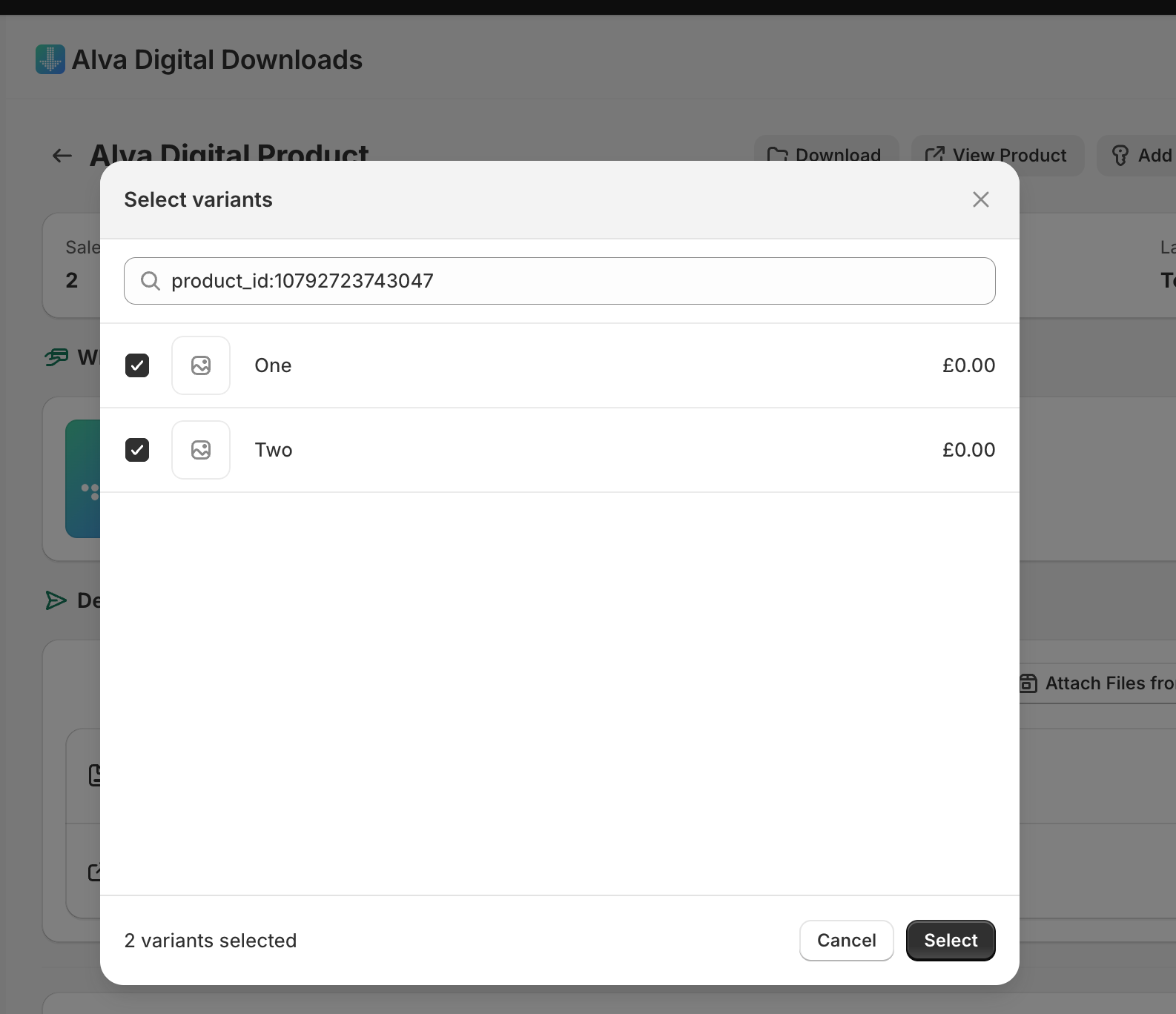
2. Attach a file without selecting variants
On the Files tab, click Add file, pick the file, and click Save. Leave the variant selector untouched — the mapping is marked as the default and covers every variant.
3. Done
The Variants summary now reads All. Every paid order on this product, on any variant, triggers the same file.
Path 2 — Different files per variant
Use this when each variant maps to a distinct deliverable — separate audio formats, language editions, or licence tiers. Alva supports this by creating one mapping per variant set on the same product.
1. Open the product in Alva
From Products in the Alva admin, click the product whose variants need different files.
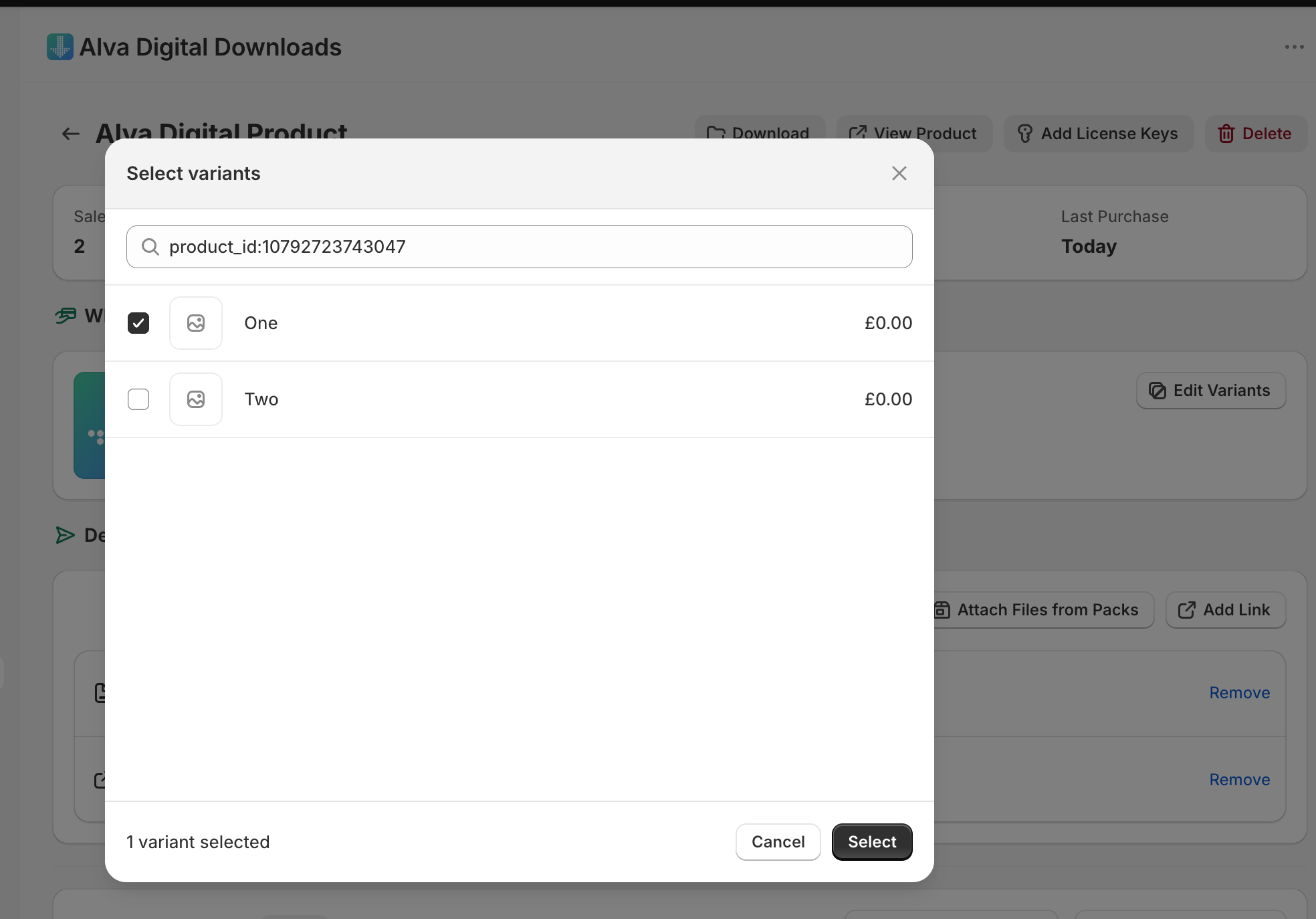
2. Click "Select variants" and pick one variant
Click Select variants on the product card and tick only the variants that should receive this file — for example MP3. The mapping now applies to those variants alone.
3. Attach the file for those variants
On the Files tab, click Add file, pick the file (for example the MP3), then click Save.
4. Repeat for every other variant
Add another mapping on the same product, scope it to the next variant (for example WAV), and attach its file. Repeat until every variant has its own mapping.
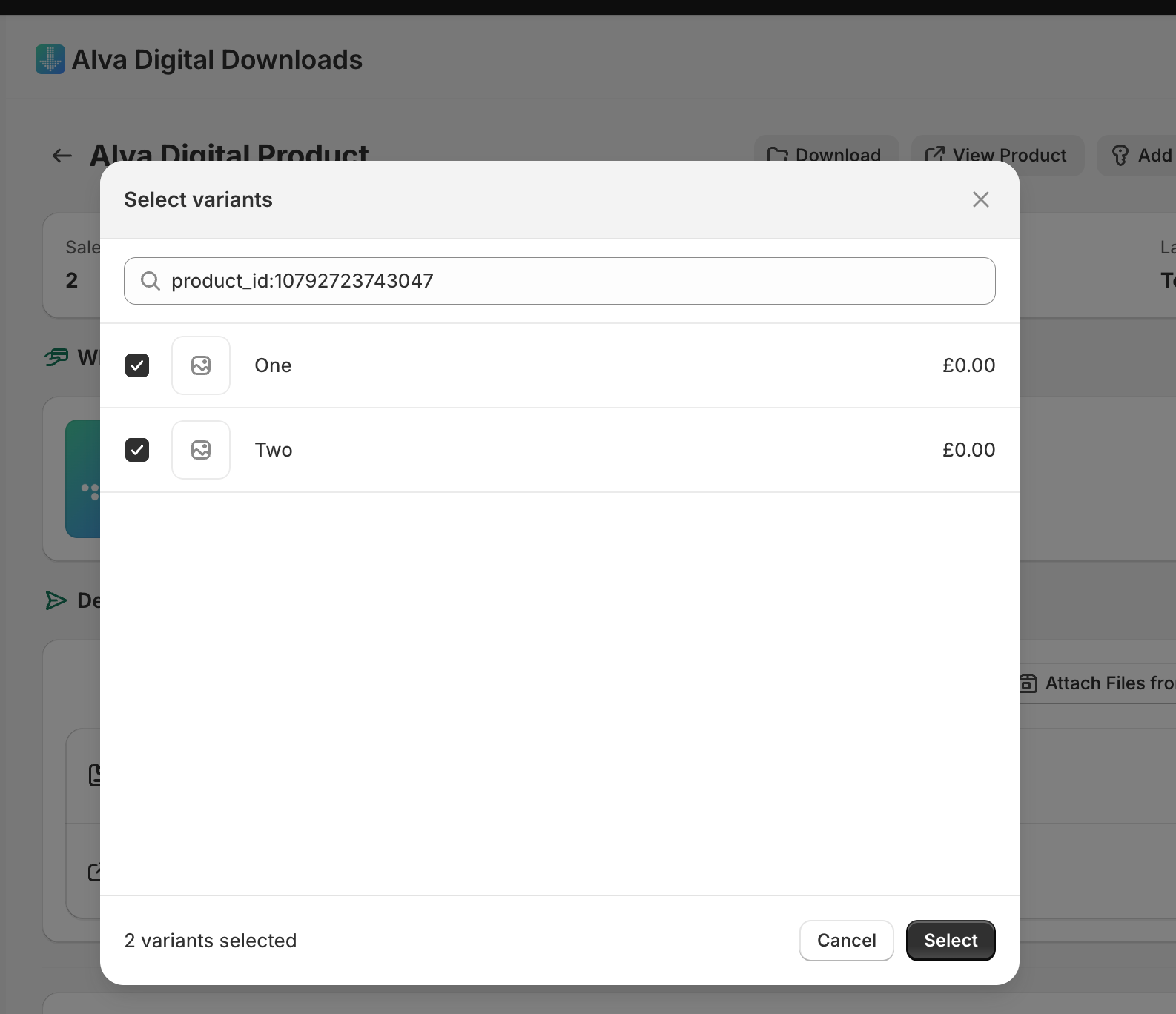
5. Place a test order on each variant
Buy each variant once with a 100% off discount and confirm each download email contains only the file mapped to that variant. See Send a test order to yourself.
What customers see
The download email and the Shopify thank-you page show only the files mapped to the variant the customer bought — not every file attached to the product. A customer who orders the MP3 variant sees the MP3 download link only.
Limitations
If a variant has no per-variant mapping and no default mapping exists, the order shows No downloads and no email is sent. Keep a default mapping as a safety net, or confirm every active variant is covered. New Shopify variants fall back to the default mapping when one exists; otherwise add them manually.
Frequently asked questions
New variants inherit the default mapping. If no default exists, open the product in Alva and either add the new variant to an existing mapping or create a new one for it.
Yes. Attach as many files as the variant should receive on the same mapping. Customers get every file in one download email, bundled as a ZIP by default.
Yes. Attach a Pack instead of a File on the per-variant mapping. The pack contents become the deliverable for the variants that mapping covers.
See also
Was this helpful?
Last updated 2026-05-06