How packs work
A pack is a named bundle that holds one or more files. Mapping a pack to a Shopify product (or specific variants) delivers every file in that pack to the customer. Alva ZIPs the files automatically and caches the result per pack version, so repeat downloads of the same pack reuse the same ZIP without rebuilding it.
Create a pack
1. Open the Packs tab
In the Alva admin, click Files & Packs in the sidebar, then select the Packs tab. The list shows every pack in the shop with its file count.
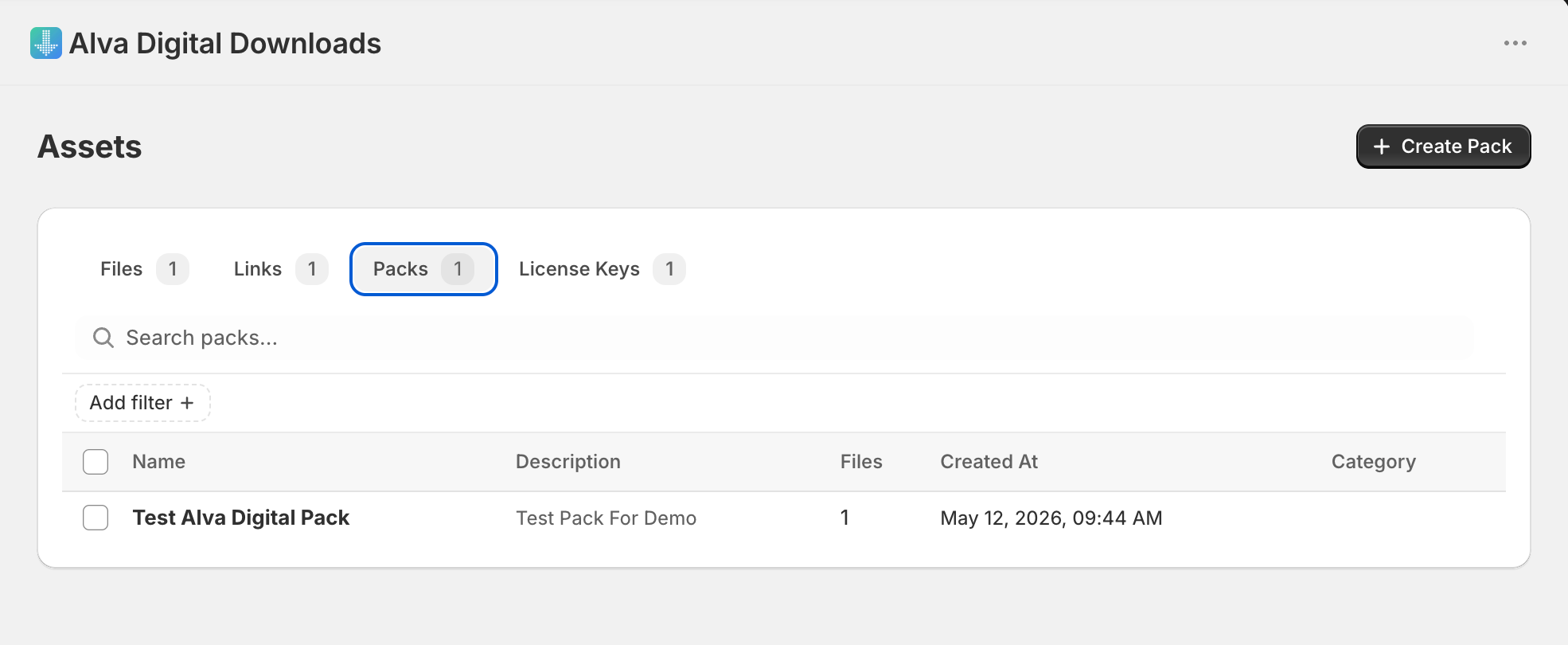
2. Click Create pack
Click Create pack in the top right. The pack editor opens at /app/packs/new with empty Title, Description, and Files fields.
3. Name the pack
Enter a Title — this is what you will pick from the product mapping dialog later. Add an optional Description for internal context (customers do not see it).
4. Add files to the pack
Click Add files. The picker shows everything in Alva storage. Tick the files you want, then click Add. To include a file that is not yet uploaded, upload it first from the Files tab and come back.
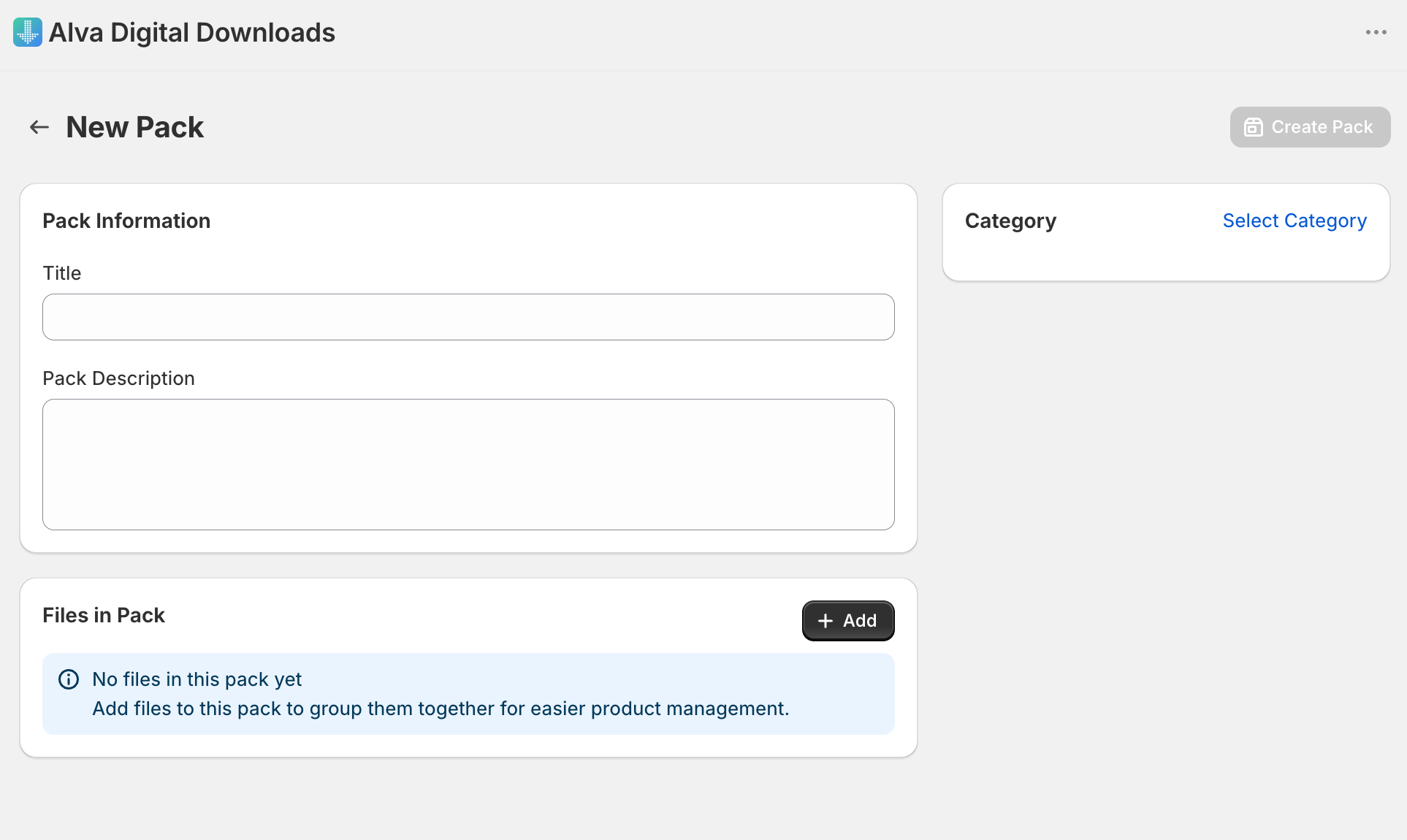
5. Save the pack
Click Save. The pack is now available in the product mapping picker.
Map the pack to a product
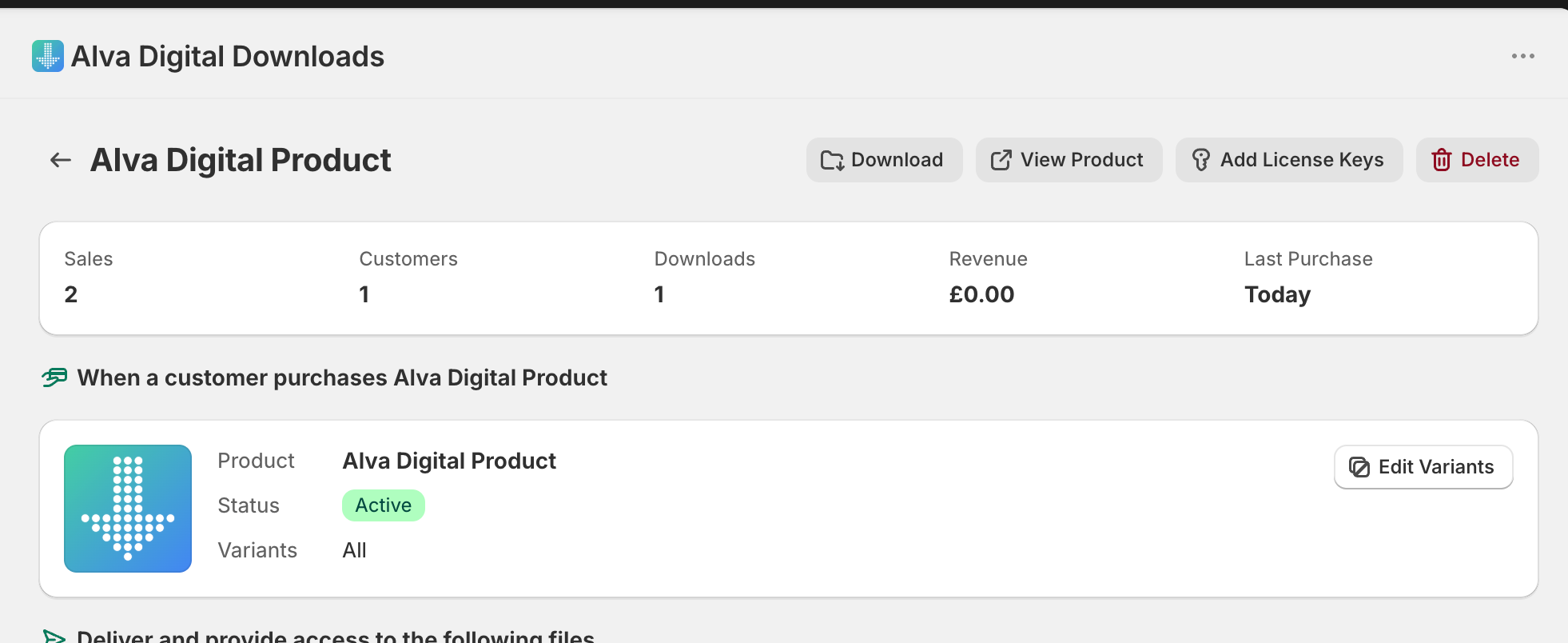
Mapping a pack uses the same flow as attaching a file — open the product in Alva, switch to the Packs tab on the product detail page, click Add pack, pick the pack, and save. Use the variant selector inside the dialog if the pack should only deliver on specific variants.
What customers see
The customer receives one download link in the delivery email. Clicking it pulls down a single ZIP file containing every file in the pack. The download counts as one against any per-customer download limit, even though the ZIP holds multiple files inside.
Limitations
Editing a pack marks every product mapped to it for ZIP regeneration, so the first download after a large edit may take a few extra seconds while the new ZIP is built and cached. Personalised products do not belong in regular packs — per-order custom files are delivered through the personalised product flow, not the pack table.
Frequently asked questions
Yes. A file lives once in storage and can belong to any number of packs. Editing the file (replacing the upload) updates every pack that contains it.
New downloads after the edit receive the updated ZIP. Customers who already downloaded keep what they have. Resend the email from the order detail page if you want them on the new version.
Yes. Attach any combination of individual files, packs, and links to one product. Alva merges everything into a single ZIP for the customer when the download type is set to ZIP.
See also
Was this helpful?
Last updated 2026-05-06