When to use link selling
File products are the right fit when the asset is a static download — a PDF, an MP3, a ZIP of source files. Link products are the right fit when the asset lives somewhere the customer needs to visit: a private Vimeo Showcase, a Google Drive folder, a Notion workspace, a Loom recording, a course on Teachable.
Set up a link product
1. Open the Links page
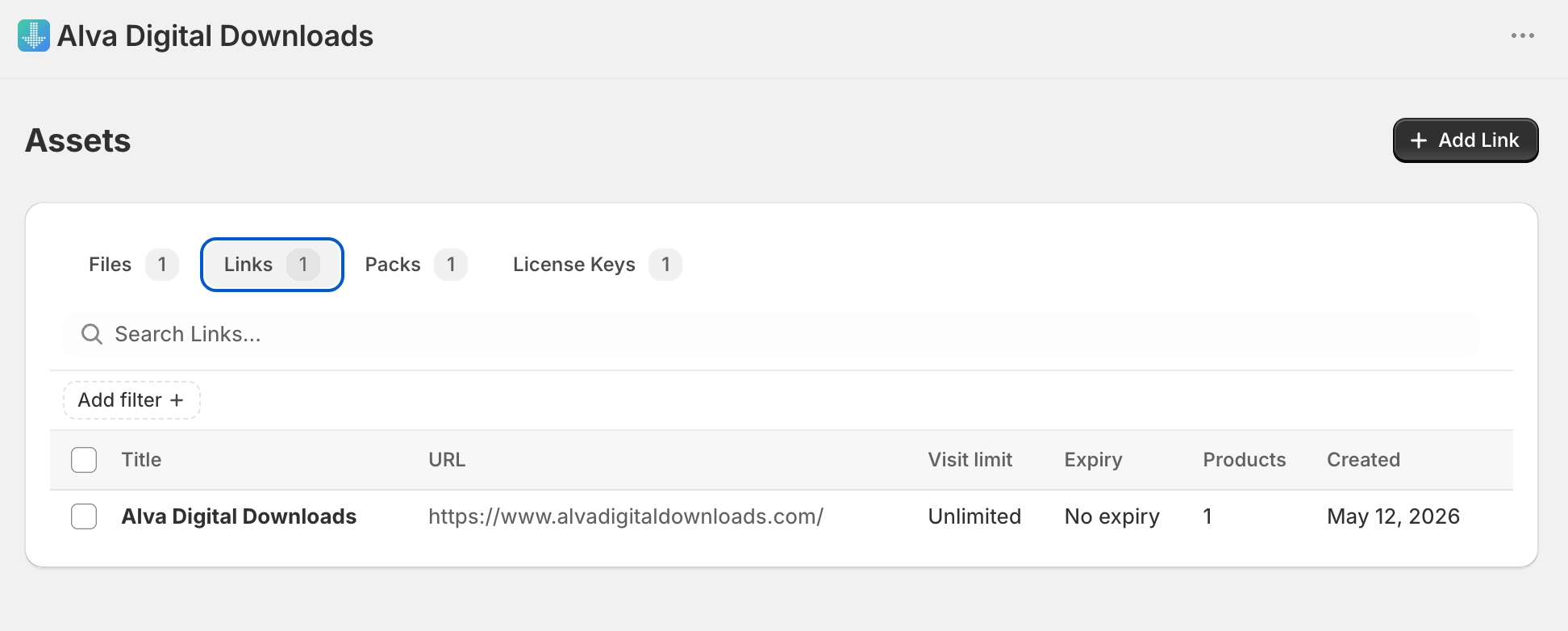
In the Alva admin, click Links in the left navigation. The page lists every link saved on the shop, with destination URL, visit limit, and mapped-product count for each one.
2. Create a link
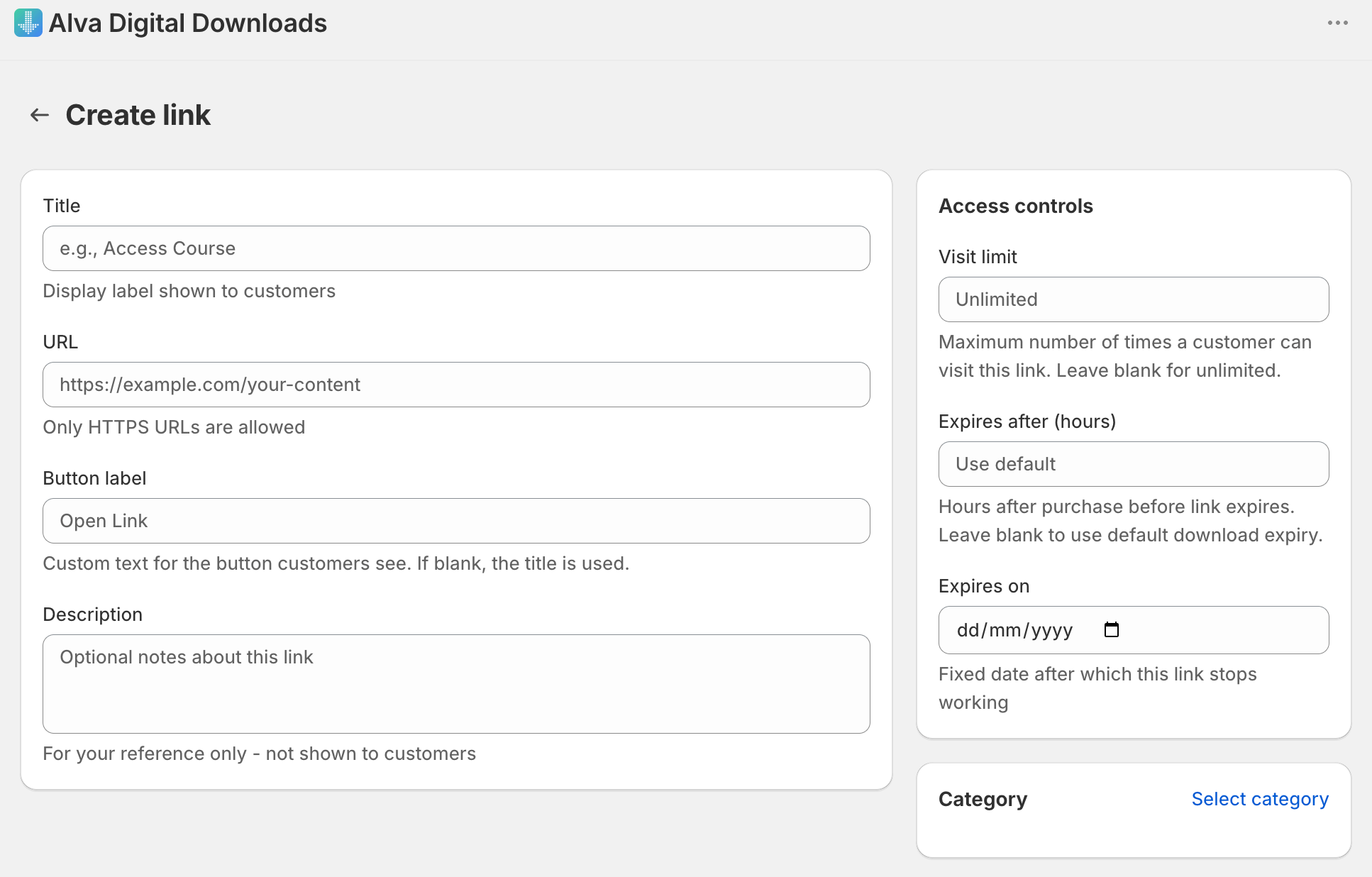
Click Create link. Paste the destination URL (must start with https://), give the link a title customers will recognise, and optionally set a button label, a visit limit, and an expiry window.
3. Map the link to a Shopify product
Open the product mapping for the Shopify product, switch to the Links tab, and attach the link. The mapping flow is the same one used for files and packs — see Attach a file to a product.
4. Save
Click Save. Every paid order for that product will now include the link in the delivery email and on the customer download page.
What customers see
After payment (and after fraud approval, when fraud checks are enabled) the customer receives the standard delivery email with a button for the URL product. Clicking it opens the Alva access page, then redirects them to the destination. Visit limits and expiry behave the same way as file downloads, with one difference: the visit count is held against the issued access link rather than the customer, so a buyer who requests a new delivery link starts a fresh allowance.
Customer-facing delivery email or download page showing a branded button labelled (e.g.) "Watch the video" or "Open the folder". Highlight the button. No real customer data visible.
How access protection works
Each customer receives a unique access link of the form /apps/alvadigitaldownloads/link?key=…&linkId=… — never the raw destination URL. When the link is clicked, Alva validates the order, checks the visit count and expiry with strict consistency so two simultaneous clicks cannot both bypass a limit, then redirects the browser to the destination. The redirect is sent with Referrer-Policy: no-referrer, so the destination platform never sees the access-link URL in its referer logs.
Limitations
Alva controls the access link, not the destination. If a Vimeo video is set to "anyone with the link", any customer can re-share that destination URL once they reach it. To restrict the destination further, use the privacy controls on the destination platform — for example, Vimeo's domain-locking, or Google Drive's per-email sharing.
Frequently asked questions
Yes. A single Shopify product can have files, packs, links, and license keys all attached. Customers receive every attached asset in the same delivery email and download page.
Yes. Edit the Link record and save — every existing access link starts pointing at the new URL on the next click. The customer's access link itself does not change, so emails sent before the edit keep working.
Yes. Each link has its own maxVisits and expiry settings, and a customer who hits the visit limit sees a clear error page instead of being redirected. The visit count is held against the issued access link rather than the customer or the order, so a buyer who requests a new delivery link starts a fresh allowance — treat maxVisits as a deterrent rather than a hard guarantee.
See also
Was this helpful?
Last updated 2026-05-06