How it works
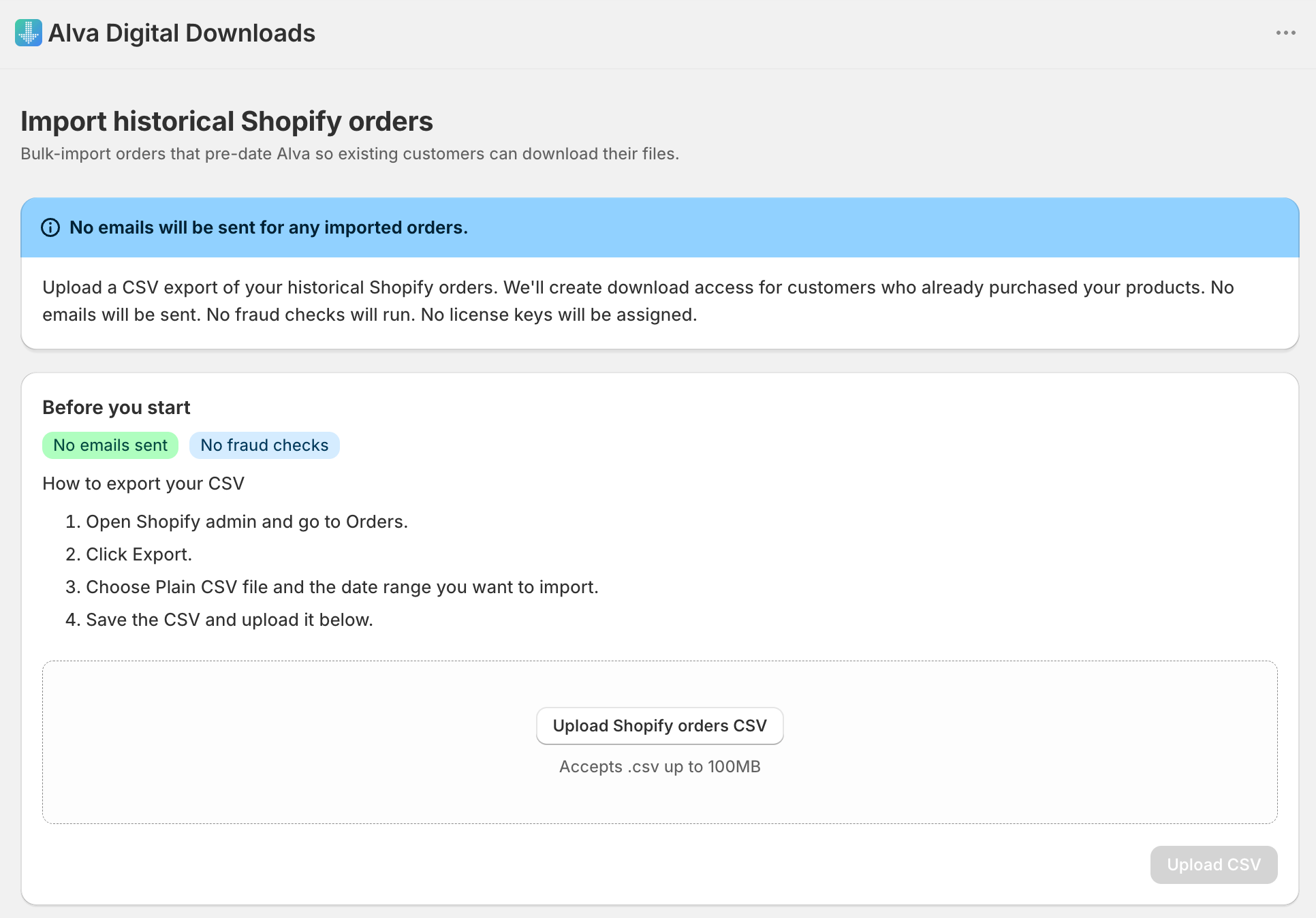
The Shopify orders importer reads a standard Shopify orders CSV, matches each order's customer by email, matches each line item to a mapped file or pack by SKU first and product title second, and creates order records in Alva for every eligible match. It does not send emails, does not enqueue fraud checks, and does not assign license keys — those side-effects are reserved for live orders that arrive through the regular Shopify payment flow.
Before you start
Map every Shopify product that ever sold a digital file to a file or pack in Alva before you run the import. Unmapped products are skipped row-by-row and shown back in a summary, but the cleaner approach is to map first and import once.
- Files mapped to products. Open Files in Alva and confirm each digital product has at least one file or pack attached. Variant-level mappings work too.
- Decide on the date range. Common picks: the past 90 days for an active store, or all-time for a migration from another fulfilment app.
- Have a small test CSV ready. Export a single recent week first to validate the mapping, then re-export the full range once the dry run looks right.
Export the orders CSV from Shopify admin
Shopify exposes the order export under Orders → Export. The importer expects the CSV's standard column names — do not rename columns or hand-edit the file.
- Open Shopify admin → Orders. Use the filters to narrow to the date range you want to backfill.
- Click Export. Choose Plain CSV file (not For Excel, Numbers, or other spreadsheets) and select Orders, transactions, and refunds.
- Pick the right scope. "Current page", "Selected orders", "All orders", or "Orders matching your search" all work. The importer only acts on rows whose financial status is
paid. - Download the email Shopify sends. Shopify emails the CSV link to the store's owner email for large exports. Save it locally — do not unzip and re-zip.
Run the importer
The importer lives at Orders → Import historical orders in the Alva admin sidebar. It chunks large CSVs automatically — there is no row-count limit you need to worry about.
- Open Orders in Alva, then click the Import historical orders secondary action in the page header.
- Drop the CSV on the upload zone. Alva validates the column headers immediately and rejects the file if any required column is missing.
- Wait for the preview. Alva resolves customers by email, matches products by SKU then title, and shows counts: total orders, eligible orders, skipped (cancelled / not paid / no email), customers found vs missing, products matched vs unmapped, and orders already imported on a previous run.
- Review unmapped products. If the preview surfaces unmapped product titles, cancel the import, map them in Files → Products, and re-upload the same CSV. Already-imported orders will be skipped automatically.
- Confirm and start. Click Start import. Progress streams in the UI as each chunk completes. Closing the browser tab does not abort the import — it runs to completion server-side and you can reopen the page to see the result.
What the importer does (and skips)
The importer is deliberately minimal. It writes the smallest set of rows needed for a customer to resend their own download links, and skips every side-effect that would surprise a returning customer.
Side-effects of the Shopify orders importer compared to a live paid order arriving in real time.
| Side-effect | Live order (webhook) | Imported order |
|---|---|---|
| Order records created | Yes | Yes |
| Download access enabled | Yes | Yes |
| Delivery email sent | Yes (if enabled) | No — never |
| Fraud check queued | Yes (if enabled) | No — never |
| License keys auto-assigned | Yes (if mapped) | No — never |
| POS / Flow triggers fired | Yes | No — never |
Every imported order is created with fraud checking disabled and download access enabled immediately — no fraud review is queued. That is what makes the customer-account page show the file straight away without ever triggering a download email or a license-key assignment.
Honest limitations
- Customers must already exist in Shopify. The importer matches by email against your Shopify customer list. Guest checkouts that never created a customer record cannot be matched, and those rows are reported in the skipped summary.
- Email-changed customers are skipped. The CSV holds the email captured on the original order. If a customer has since changed their Shopify email, the lookup misses and the order is reported as unmatched.
- Personalized products are not imported. Made-to-order files belong to a specific Purchase via the per-purchase file table and have to be uploaded by hand. The importer only restores access to the standard product-mapped files.
- Download counts start at zero. Imported orders have no historical download count. If you previously enforced a per-order download limit, customers regain a fresh allowance after import.
- No automatic notification. The importer never tells customers their access is restored. Either announce it via a marketing email outside Alva, or wait for individual resend requests.
A historical-order import that emailed every past customer would, on a 50,000-order store, fire 50,000 delivery emails the moment you click Start — a guaranteed inbox-provider spam flag. Alva ships the importer with email, fraud, and license-key side-effects hard-coded off so the safe path is the only path.
FAQ
Will the importer email past customers when I run it?
No. The Shopify orders importer never sends emails. Past customers receive new download links only when they request a resend or visit the Shopify customer-account page.
Does the importer run a fraud check on imported orders?
No. Fraud checks only make sense for fresh orders where Shopify Risk data is current. Imported orders skip fraud checks and give the customer immediate download access — no review is triggered.
Will the importer assign license keys to imported orders?
No. License keys are never assigned during a historical import. If a past order needs a key after import, attach one manually from the order detail page in Alva.
Is it safe to run the import twice?
Yes. The importer is idempotent — re-running with the same CSV detects already-imported orders and skips them. The summary reports how many orders and line items were skipped on the second pass.
What happens to orders for products I haven't mapped yet?
The importer skips line items whose Shopify product cannot be matched to a file or pack in Alva. The preview lists every unmapped title with an order count so you can map them and re-run.
What about cancelled or unpaid orders in the CSV?
Alva only imports rows where the Shopify financial status is paid and the order is not cancelled. Unpaid, cancelled, and refunded orders are counted in the skipped summary and not imported.
Why does the import skip a product I've already mapped in Alva?
If a product has more than one variant, Shopify writes the order line as the product title plus the variant (for example, Kuutar - Suomeksi / PDF), and older orders often carry no SKU. Alva matches each line to your mapped product and variant automatically, including this combined format, so a mapped product imports correctly. If a line still shows as not matched, the product was most likely deleted or renamed in Shopify after the order, or it is not mapped yet — the import summary lists each skipped product and which of the two reasons applies, so you can fix it and re-import the same CSV.
See also
Was this helpful?
Last updated 2026-05-08