Where to view delivery status
The email log lives on each order, not as a global feed. Open the order to see every email Alva attempted.
1. Open the order in the Alva admin
In the Alva admin, click Orders, then click the order number you want to inspect.
2. Scroll to the Email history section
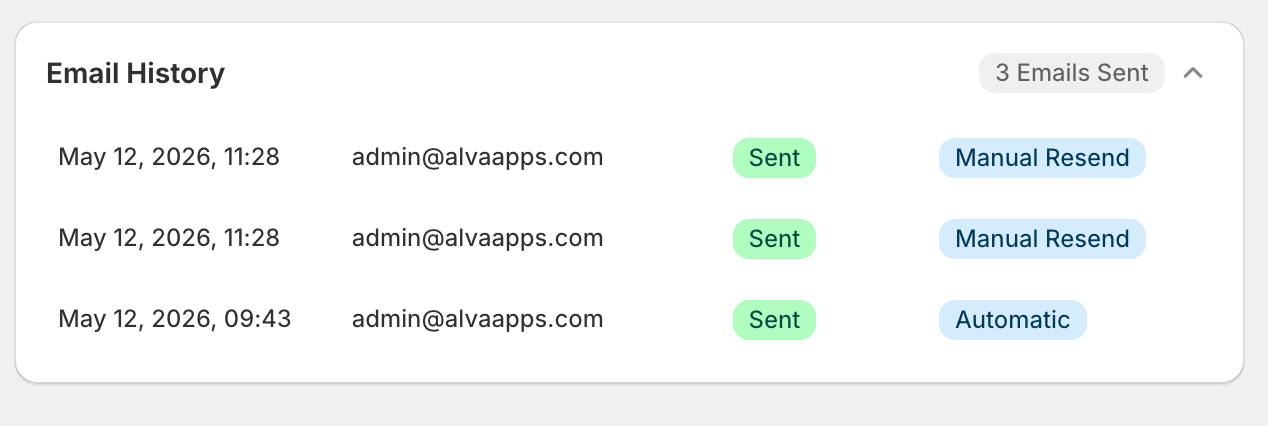
Below the customer and product cards, find the Email history card. The badge on the right shows the total count, e.g. 2 emails sent.
3. Expand to see each entry
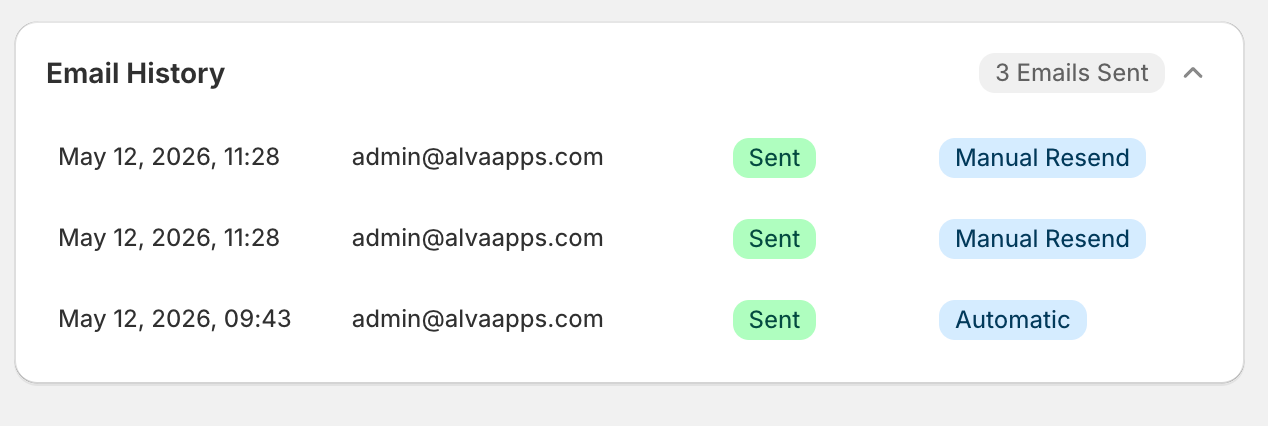
Click the chevron on the card. Each row shows the send timestamp, recipient, status badge (green for success, red for failed, amber for pending or bounced), and the email type — Download link, Manual resend, or License key delivery.
4. Inspect the provider response
The delivery confirmation ID, error code, and error message are stored in the log entry — forward those values to support if a send needs investigating.
What the status values mean
SUCCESS— The email was accepted by the delivery provider and is en route to the recipient inbox. This is the normal terminal state.PENDING— Alva created the log row but is still awaiting a provider response, or a fallback retry is in flight.BOUNCED— The email provider rejected the recipient address. Covers hard bounces and suppression-list hits. Alva does not retry these.FAILED— A non-recoverable error occurred (network failure, provider error, or an internal processing exception). The error message is captured in the log entry.COMPLAINT— The recipient marked the message as spam after delivery.
Re-sending failed emails
If a row shows FAILED after a transient provider issue, trigger a fresh send from the same order page — the Resend a download email to a customer walkthrough covers the steps. BOUNCED rows usually need a corrected email address before resending will help.
Why is my email not in the log?
If email delivery is disabled in Settings → Email, Alva skips the send entirely and writes no log entry. Custom-domain sends are also skipped if the paid plan that provisioned the domain has lapsed. Re-enable email under Settings → Email, or restore the plan, then resend.
FAQ
How long does Alva Digital Downloads keep email logs?
Email logs are retained indefinitely on the order. Purchases placed before September 20, 2025 predate email logging and show no entries.
Does the log update when a customer opens or clicks the email?
No. The log records the send result only. Open and click events are not tracked, so a SUCCESS status confirms delivery to the inbox provider but not that the customer read the email.
Why does the log show two entries for one order?
Each send creates its own entry. A manual resend or a Flow-triggered resend each add a new row so you can audit every attempt separately.
See also
Was this helpful?
Last updated 2026-05-06