Key states in Alva
Each license key carries one of four statuses, reflecting where it sits in its lifecycle:
- AVAILABLE — sitting in the pool, waiting to be assigned.
- ASSIGNED — attached to a customer order.
- REVOKED — manually pulled out of the pool, never re-issued.
- RETURNED — was assigned, then released before the customer viewed it; the underlying key moves back to
AVAILABLEwith an audit trail on the purchase row.
AVAILABLE → ASSIGNED   (paid order, fraud-approved)
ASSIGNED  → REVOKED    (Revoke — terminal)
ASSIGNED  → AVAILABLE  (Return — only if not viewed)
Revoke a key from an order
Revoke is a hard action: the key moves to REVOKED, is permanently marked as revoked, and is never offered to another order. The customer's copy of the key string is unchanged — if your downstream system checks a central registry on activation, the key will fail there.
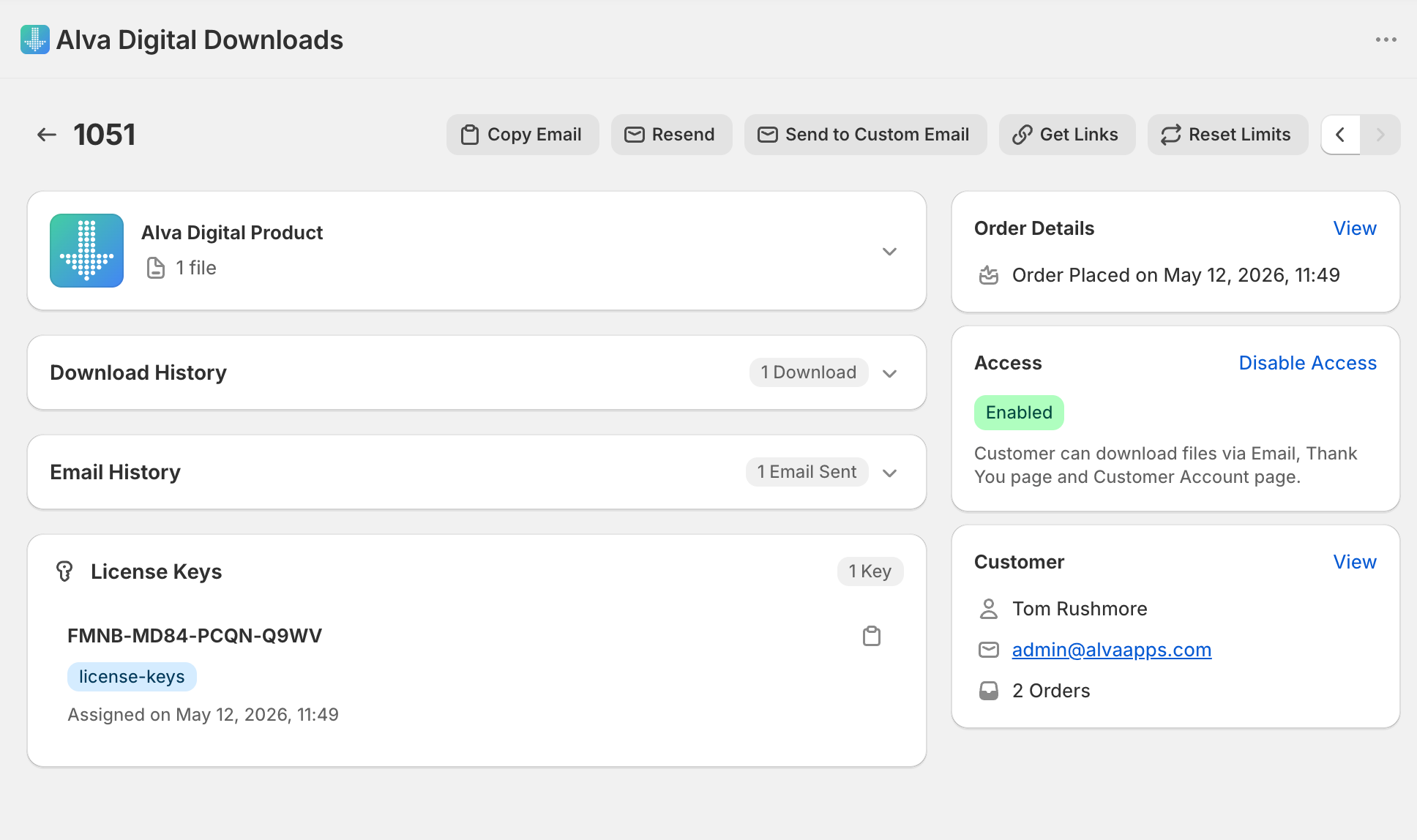
- Open the order under Orders and scroll to the License keys section.
- On the assigned key row, click Revoke.
- Confirm in the modal. The row updates to Revoked and disappears from the customer's account page on next reload.
Return a key without revoking
Use Return when the customer says the key did not work and you want a fresh key on the order without burning the old one. Alva moves the original back to AVAILABLE, records the return, and the next order in line claims it. Return is only enabled while the customer has not yet viewed the key.
- Open the order and scroll to License keys.
- Click Return on the affected key row and confirm.
- Click Assign new key to claim the next available key, then resend the delivery email.

What customers see
Revoked keys disappear from the customer's account page and the order status download page on next load — only the file links remain. Returned keys also drop off, since the assignment row is removed. Neither action sends a notification: pair Revoke with a refund email and pair Return with a fresh assignment plus a manual resend.
Frequently asked questions
No. Revoking is permanent — the key cannot transition back to Available. If you revoked by accident, upload a fresh key to the same group and assign it manually to the order.
Return is only available while the customer has not yet viewed the key. Once the customer opens the delivery email or downloads page and the key is marked as viewed, only Revoke remains available.
No automatic email goes out for a manual reassignment. Use the order's Resend email action after assigning the replacement key so the customer receives the new code.
See also
Was this helpful?
Last updated 2026-05-06