Before you start
You need a list of license keys saved as a .csv or .txt file and the Shopify product they apply to. License keys are a paid-plan feature — Free-plan stores are prompted to upgrade first.
Prepare your CSV
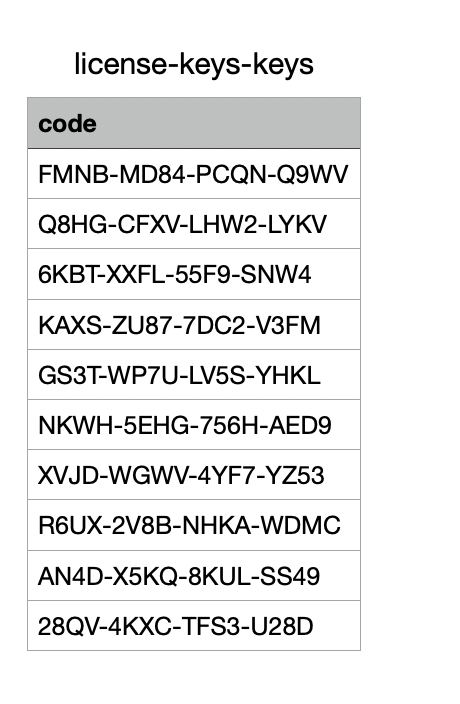
Alva accepts the simplest possible format: one license key per line, no commas, no quotes. A header row is optional — Alva strips it automatically if the first line is exactly code, key, or license_key. An example file:
ABCD-1234-EFGH-5678
WXYZ-9876-LMNO-5432
QRST-2468-UVWX-1357
Keys can be any string up to 255 characters — UUIDs, alphanumeric blocks, and vendor-specific codes all work.
Upload license keys
1. Open the License Keys page
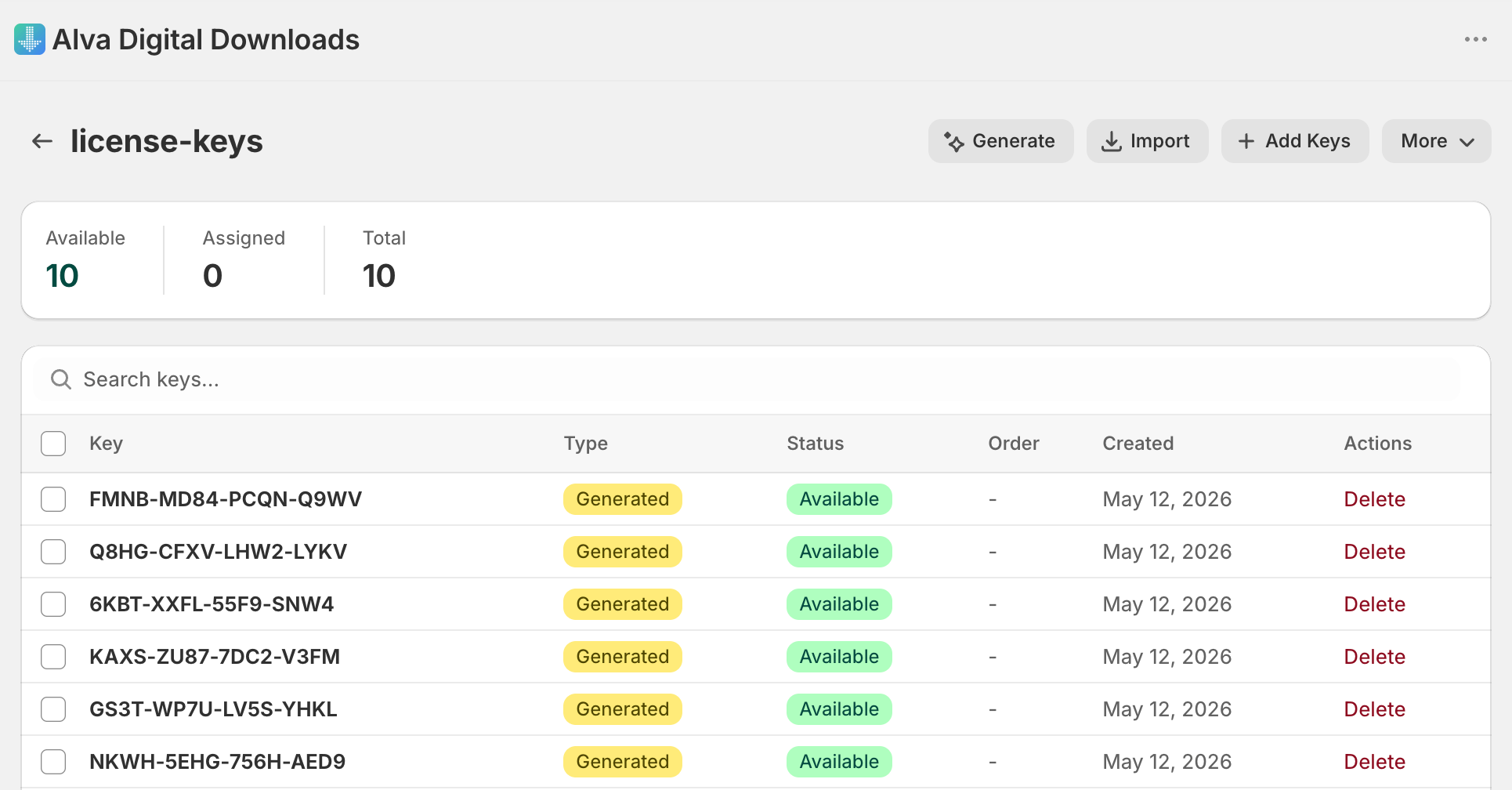
In the Alva admin, click License Keys in the side navigation. The page lists every license key group with its available count.
2. Create or open a group
Click Add License Keys to create a new group, name it after the product or version it ships with (for example, "Pro Plugin v3"), and save. Or open an existing group to top it up.
3. Click Import and drop in the CSV
Inside the group, open the actions menu and click Import. Drag the file onto the dropzone or click to browse. Alva parses the file and shows a preview with the count of keys found and the first five entries.
4. Confirm the import
Click Import (n) to save the keys. Alva imports the unique entries, skips any duplicate of a key already in the group, and reports both counts in a confirmation toast.
5. Link the group to a product
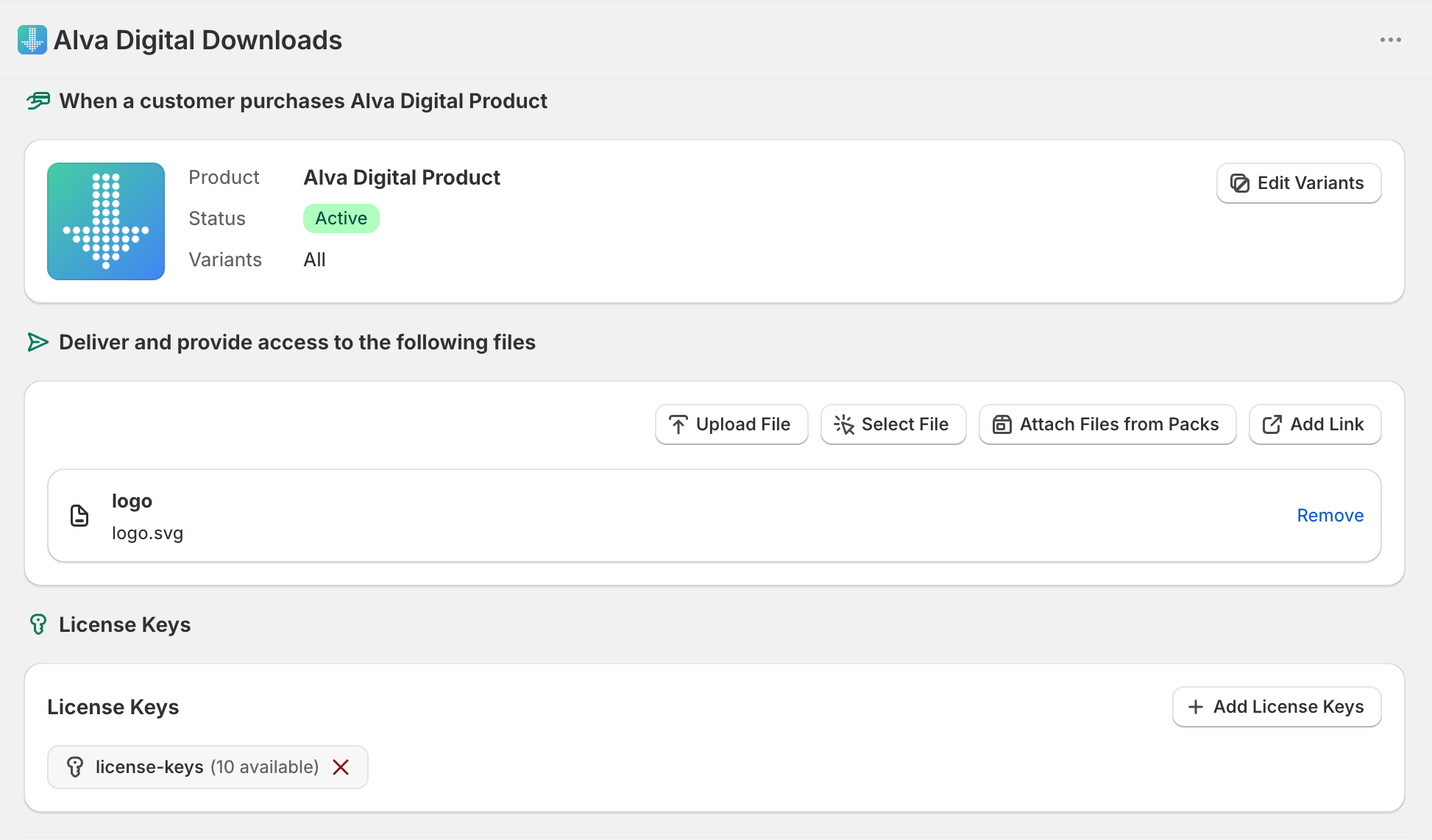
Open the matching Shopify product in the Alva admin and attach the license key group under License Keys. Alva claims one key per paid order from then on and includes it in the customer's delivery email.
What customers see
After a paid order passes any fraud check, the customer's delivery email contains their unique license key alongside any download links — or on its own, for a license-key-only product. The same key also stays available on the customer-account downloads page for re-copy. License keys are never assigned before fraud approval — held orders show a "your license key is being prepared" message until the order is approved.
Limitations
Multi-column CSVs are not supported — Alva reads the first column only. Individual keys can be up to 255 characters; longer strings may render awkwardly in emails. To allow the same key in a group twice, enable Allow Duplicate Keys on the group settings page.
Frequently asked questions
By default each key is assigned to exactly one customer and never reused. To allow the same key to appear twice in a group, enable Allow Duplicate Keys on the group settings page.
The order is held in a pending assignment queue and the customer sees an out-of-stock message. Upload more keys to the group and Alva assigns them to waiting orders automatically. Configure low-stock alerts to be warned before this happens.
Yes. Open the group, select the keys, and click Delete Selected. Keys already assigned to a customer are protected — revoke or return them first to take them out of circulation.
See also
Was this helpful?
Last updated 2026-05-06