How tags work
Each license key can belong to one or more tags. Each Shopify product can be linked to one or more tags, and Alva claims from those pools at order time. Products never link to individual keys — only to tags.
On a paid order, Alva walks the product's attached tags and claims the oldest available key in each pool — first in, first out. If a tag is empty, the order enters a waiting state; once new keys are added to the pool, they are assigned to waiting orders in the order they arrived.
Create a tag and link keys
1. Open the License Keys page
In the Alva admin, click License Keys in the side navigation. Existing tags appear with their available count.
2. Add a tag
Click Add License Keys. Enter a tag name — lowercase, alphanumeric, hyphens only (for example pro-plugin or eu-region). Save.
Alva admin License Keys page. Show 3 tags ("pro-plugin", "lite-plugin", "eu-region") with Available counts. Highlight the "Add License Keys" button. No real customer data.
3. Import keys into the tag
Open the tag and click Import. Upload a CSV, paste keys manually, or enable Auto-generate for on-demand UUID, ULID, or alphanumeric codes. Alva commits the keys to that tag's pool only.
Map products to a tag
1. Open the product mapping
Go to Products in the Alva admin and open the product that should pull from this pool.
2. Choose License keys
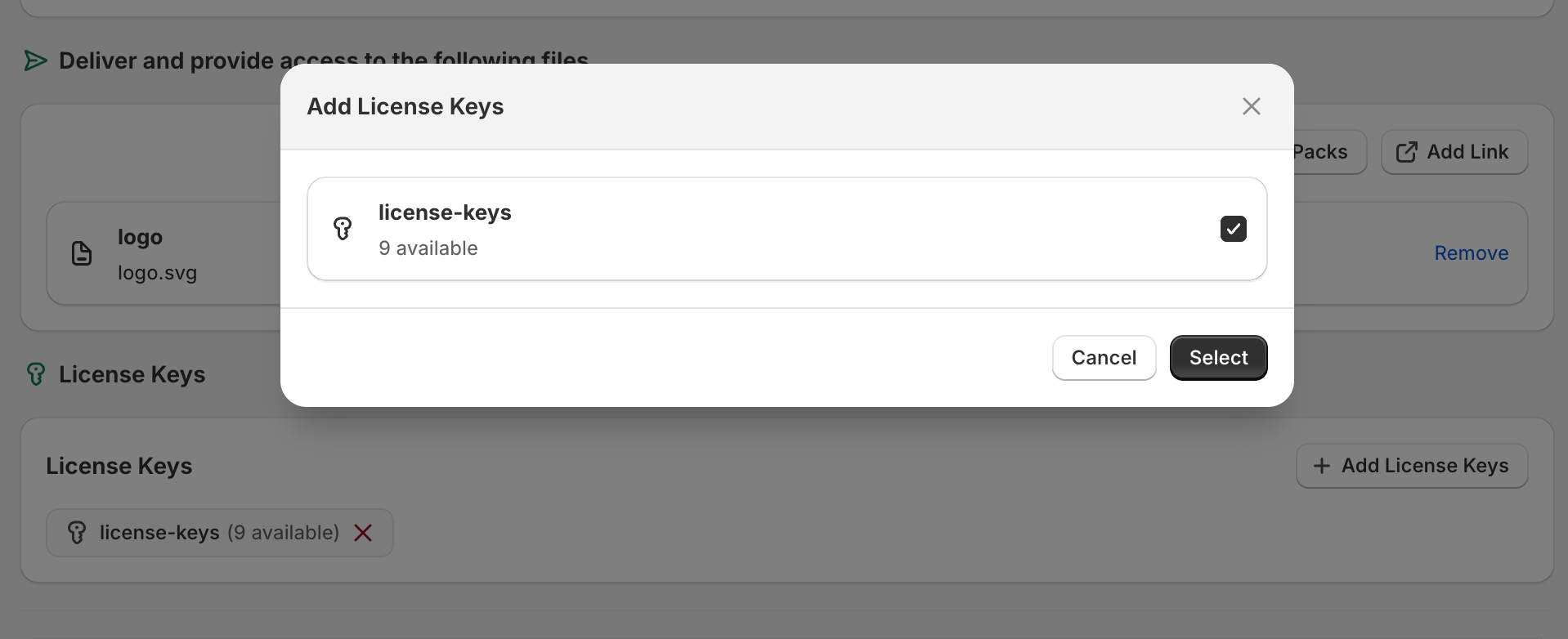
Scroll to the License Keys section on the mapping page and click Add License Keys.
3. Select the tag and save
Pick the tag from the list and save. From the next paid order onwards, Alva claims one key from this tag's pool per matching product.
What customers see
Same as a normal license key. After fraud approval the delivery email contains one valid key from the right pool, and the same key appears on the customer-account downloads page. Customers never see the tag name.
Best practices
Use one tag per pricing tier (pro, lite, trial) or per region (na, eu, apac). Avoid generic catch-all tags — they defeat the scoping. Combine tags with low-stock alerts so a depleted Pro pool doesn't quietly route orders into the pending queue while the Lite pool stays full.
Frequently asked questions
Yes. Attach two or more tags under License Keys on the product mapping page and Alva claims one key from each tag per paid order. Useful when a product ships with both an app license and a separate plugin license.
Yes. Each license key can be linked to multiple tags. Once any product claims the key, it moves to assigned status and disappears from every pool it was sitting in.
Yes. Open the source tag, select the keys, and use Move to Tag. Keys already assigned to a customer stay attached to that order regardless of where the unused keys live.
See also
Was this helpful?
Last updated 2026-05-06